
The Google Sheet Magic Lookup Extension for Zoho CRM automates CRM field updates using Google Sheets data through configurable Zoho CRM workflows. It removes manual data entry, keeps CRM records accurate, and provides full audit visibility, making it ideal for teams that rely on spreadsheets for operational logic, reporting, or ownership management.
“Workflow-Driven Zoho CRM ↔ Google Sheets Integration”
What This Extension Solves #
Many Zoho CRM users still rely on Google Sheets for decision-making, validations, and operational logic. However, keeping CRM data and Google Sheets aligned usually involves
- Manual copy-paste
- Periodic CSV imports
- High risk of errors
- Delayed updates
The Google Sheet Magic Lookup Extension for Zoho CRM eliminates these challenges by creating a live, workflow-based bridge between Zoho CRM and Google Sheets.
Instead of exporting data, this extension allows Zoho CRM to look up values from Google Sheets and update CRM fields automatically, based on defined business rules.
Key Capabilities #
The Magic Lookup Extension provides enterprise-grade automation without complexity.
Core Features
- Workflow-based CRM field updates
- Magic Lookup logic using Google Sheet headers
- Selective field update (no full record overwrite)
- No-code configuration
- Audit logs with success & failure status
- Secure OAuth authentication
How the Magic Lookup Concept Works #
At its core, the extension follows a lookup → match → update logic.
In simple terms, when a CRM workflow runs, the extension looks into Google Sheets, finds a matching row based on a chosen field, and updates the correct CRM field. This ensures controlled, predictable automation, not blind syncing.
How to Install the Google Sheet Magic Lookup Extension in Zoho CRM #
Prerequisites
- Active Zoho CRM account
- Admin privileges in Zoho CRM
- Google account with access to Google Sheets
Installation Steps
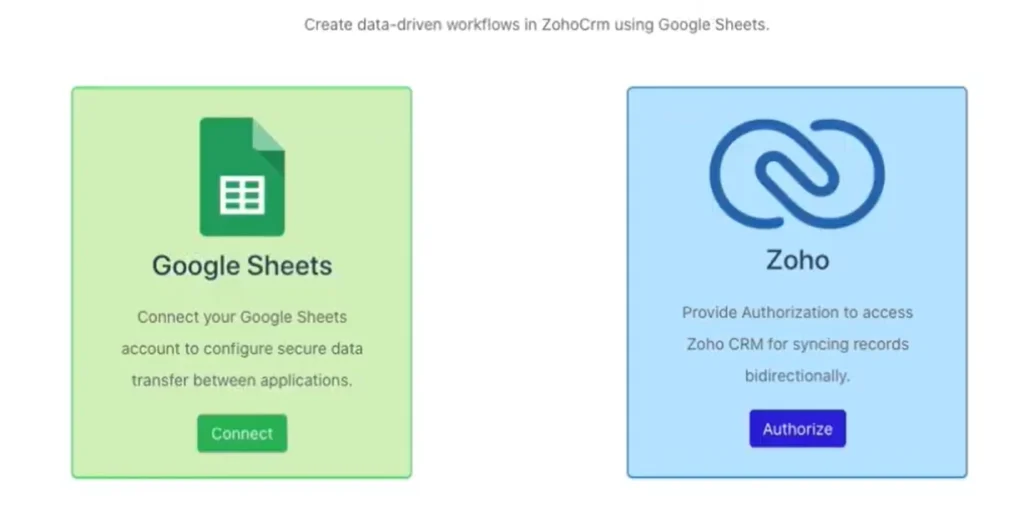
- Open Zoho Marketplace
- Search for Google Sheet Magic Lookup Extension
- Click Install
- Choose the required CRM modules
- Click Connect to Google Sheets
- Sign in to your Google account
- Click Authorize to link Zoho CRM
- Click Accept to grant permissions
Once completed, the Magic Lookup Extension home page is displayed.
Configuration Setup – How to Configure Google Sheet Magic Lookup in Zoho CRM #
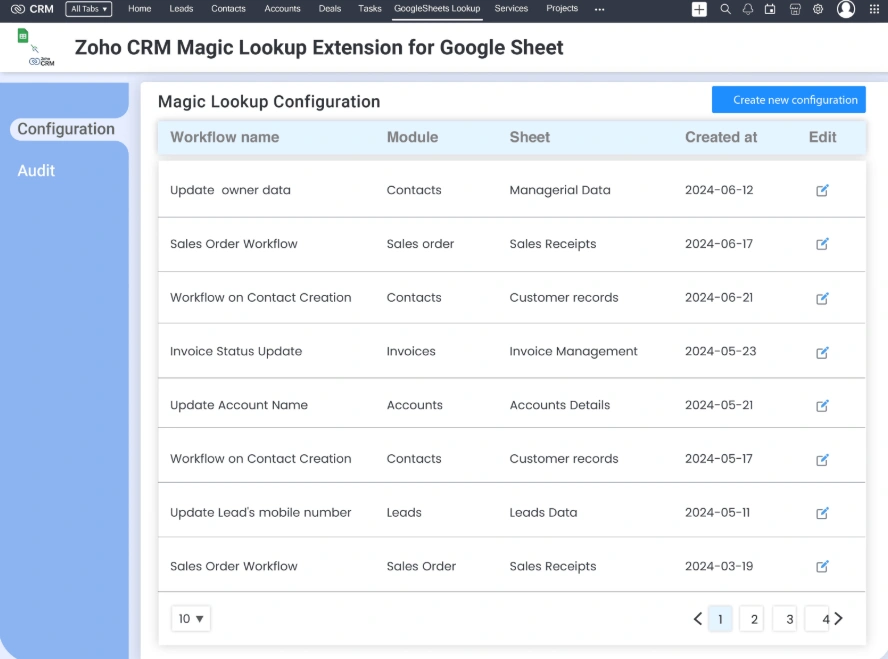
Creating a New Configuration
Each configuration represents one automation logic.
- Click New Configuration
- Provide the required details as explained below
Configuration Settings Explained
1. Lookup Workflow Name
- A meaningful name for your automation
- Example: Assign Contact Owner by State
2. Select Zoho CRM Module
- Choose the module to update
- Examples: Contacts, Leads, Accounts
3. CRM Field for Lookup
- The CRM field that triggers the lookup
- Example: Mailing State
4. CRM Field to Update
- The CRM field that will be updated
- Example: Contact Owner
5. Select Google Sheet
- Choose the spreadsheet containing your logic data
6. Select Field for Lookup
- Column header used for matching
- Example: Mailing State
7. Select Field to Update
- The column that supplies the value
- Example: Email ID
Workflow-Driven Automation – How Zoho CRM Workflows Trigger Google Sheets Updates #
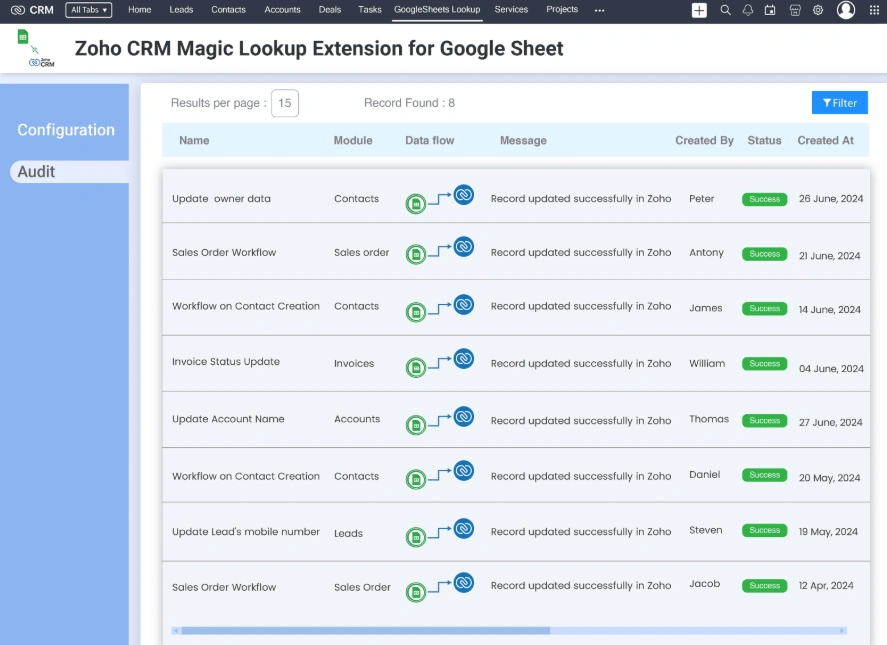
The extension works only when a Zoho CRM workflow is triggered.
Supported Workflow Triggers
- On record creation
- On field update
- On scheduled execution
This ensures
- No unnecessary sync
- Predictable updates
- Better CRM performance
Example Use Case – Updating Zoho CRM Fields Using Google Sheets Automation #
Scenario
You want to update the Contact Owner in Zoho CRM based on Mailing State, using data maintained in Google Sheets.
Execution Flow
- A CRM workflow triggers when the Mailing State is updated
- The extension scans Google Sheets
- It finds the row where the Mailing State matches
- Email ID confirms the correct contact
- Contact Owner is updated in Zoho CRM
✔ No duplicate records
✔ No spreadsheet overwrite
✔ Only the mapped field changes
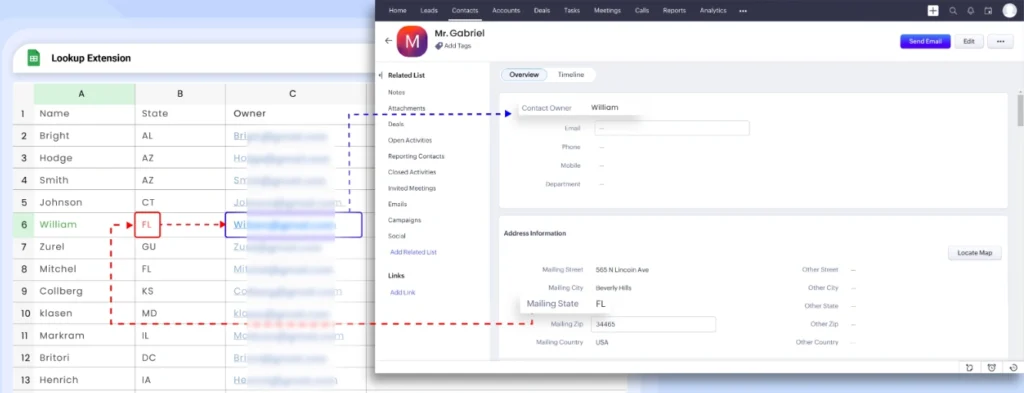
Audit Logs and Transparency – Monitor Zoho CRM and Google Sheets Automation Activity #
Every automation action is recorded in the Audit Page.
What Audit Logs Show
- Workflow trigger details
- CRM module name
- Record ID
- Success or failure status
- Clear error messages
Example Error Scenario
If Contact Owner is mapped incorrectly with Contact Number, the audit log shows a failure with an explanation, allowing fast correction.
Benefits
- Easy troubleshooting
- Compliance-ready tracking
- Admin confidence
Security and Data Protection: How Zoho CRM and Google Sheets Data Is Kept Secure #
The extension follows enterprise-grade security practices,
- OAuth-based authentication
- No password storage
- Controlled CRM access
- No data duplication
Your CRM remains the single source of truth.
Performance and Reliability: Scalable Zoho CRM and Google Sheets Automation #
- Optimized for large CRM datasets
- Workflow-triggered execution prevents overload
- Suitable for global teams
- Stable even with frequent updates
Comparison: Manual Sync vs Magic Lookup #
| Feature | Manual Sync | Magic Lookup |
| Data Updates | Users manually export and import data. | Automated updates triggered by Zoho CRM workflows |
| Automation | No Automation support | Fully automated using CRM workflow rules |
| Field-level control | Entire records or sheets are often overwritten | Only mapped CRM fields are updated |
| Audit logs | No visibility into changes | Detailed logs with success and failure status |
| Scalability | Not suitable for large or frequent updates | Designed for high-volume CRM data |
| Error handling | Errors often go unnoticed | Errors captured and displayed in audit logs |
Frequently Asked Questions #
- Can Zoho CRM fields be updated automatically from Google Sheets?
Yes. Zoho CRM fields can be updated automatically using workflow-based Google Sheets integration. When a workflow is triggered in Zoho CRM, the Magic Lookup Extension fetches matching data from Google Sheets and updates only the configured CRM fields. This ensures real-time accuracy without manual exports or imports.
- Does the Google Sheets integration for Zoho CRM require coding?
No. This integration is completely no-code. CRM administrators can configure lookup logic, field mapping, and workflow triggers through the interface without using scripts, APIs, or developer resources.
- Will Google Sheets formulas or existing spreadsheet data be affected?
No. The integration accesses only the selected columns defined in the configuration. Existing formulas, calculated fields, and unrelated data in Google Sheets remain unchanged, preserving reporting and business logic.
- Is the Google Sheets integration for Zoho CRM suitable for enterprise and large-scale automation?
Yes. The solution is built for enterprise-scale Zoho CRM automation. It includes workflow-controlled execution, audit logs, secure OAuth authorization, and field-level updates, making it suitable for large datasets, compliance requirements, and global teams.
- What type of businesses benefit most from Google Sheets integration with Zoho CRM?
Businesses that use Google Sheets for decision logic, territory mapping, ownership rules, or operational reference data benefit the most. Sales operations teams, CRM administrators, and fast-scaling enterprises commonly use this integration to keep Zoho CRM data accurate and synchronized automatically.
Final Takeaway #
The Google Sheet Magic Lookup Extension for Zoho CRM transforms Google Sheets into a logic engine for CRM automation. It eliminates manual effort, improves data accuracy, and introduces governance-ready automation. This is not just an integration; it is operational intelligence for Zoho CRM.