
The Zoho Sheets Magic Lookup Extension for Zoho CRM lets you automatically update Zoho CRM records using data from Zoho Sheets through a secure, lookup-based workflow.
It helps teams match spreadsheet rows with CRM records using a common field such as Email, State, or Record ID, and update the correct CRM fields accurately and at scale.
Instead of exporting files, writing scripts, or manually editing records, this extension allows you to use Zoho Sheet as a control layer for Zoho CRM updates. Once configured, it identifies the right CRM record, fetches the matching row from Zoho Sheet, and applies updates only to the fields you choose.
In short
Zoho Sheets Magic Lookup ensures the accuracy of Zoho CRM data by automatically syncing spreadsheet-driven decisions into CRM records, eliminating the need for imports, coding, or data duplication.
For a complete visual walkthrough, including real examples and configuration tips, watch the official video:
This video complements the documentation and is ideal for first-time users.
Best For: This extension is ideal for teams that manage operational data in Zoho Sheet and require those updates to be accurately reflected in Zoho CRM without manual intervention.
Key Capabilities
- Update CRM records from a Zoho Sheet using a lookup field
- Work with the same module or related modules
- Header-based matching for flexible sheet structures
- Supports Contacts, Leads, Accounts, Deals, and more
- Tracks every success and failure with audit logs
Installation and Authorization – Connect Zoho CRM with Zoho Sheet Securely #
Step 1: Install Zoho CRM Magic Lookup Extension from Zoho Marketplace
To begin, install the extension from Zoho Marketplace.
- Search for Zoho CRM Magic Lookup Extension for Zoho Sheet
- Click Install
- Select the Zoho CRM account where the extension should be enabled
Installing from Zoho Marketplace ensures the extension is secure, verified, and compatible with your Zoho environment.
Step 2: Connect Zoho Sheet to the Extension
After installation:
- Click the Connect button next to Zoho Sheet
- Log in using your Zoho credentials
- Grant permission to access the selected Zoho Sheets
This step allows the extension to read column headers and row values required for lookup-based updates.
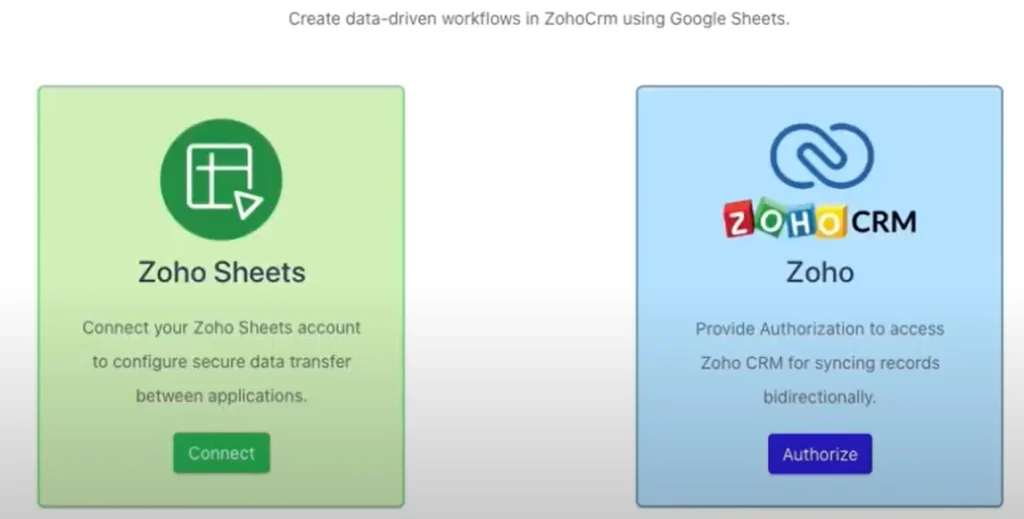
Step 3: Authorize Zoho CRM Access
Next, authorize Zoho CRM so the extension can update records.
- Click Authorize next to Zoho CRM
- Review the requested access scope
- Click Accept to complete authorization
The extension follows Zoho’s security framework and respects existing CRM role-based permissions.
Step 4: Access the Magic Lookup Dashboard
Once authorization is complete,
- The Zoho CRM Magic Lookup home page opens automatically
- You can now create workflows, configure lookup rules, and monitor audit logs
This confirms that Zoho CRM and Zoho Sheet are successfully connected.
Why Authorization Is Required
Authorization is required to
- Identify matching CRM records
- Fetch data from Zoho Sheet securely
- Update only the CRM fields you explicitly configure
- Maintain a complete audit trail
No data is stored outside the Zoho ecosystem, and access can be revoked at any time from your Zoho account. This installation and authorization setup ensures a secure, reliable Zoho CRM – Zoho Sheet integration, enabling you to automate CRM updates using spreadsheet data with confidence.
Creating Your First Workflow – Configure Zoho CRM Updates from Zoho Sheet #
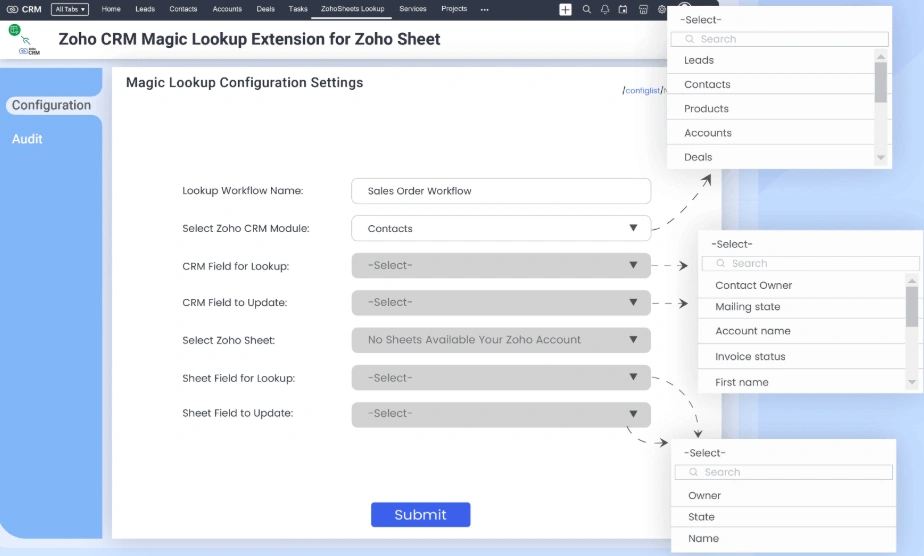
This section explains how to create your first Magic Lookup workflow to update Zoho CRM records using data from Zoho Sheet. Each workflow represents one clear business rule and ensures accurate, lookup-based CRM updates.
1. Lookup Workflow Name
Provide a meaningful name that clearly explains the purpose of the workflow.
Examples
- Assign Contact Owner Based on State
- Update Lead Source from Sheet
- Sync Account Region from Operations Sheet
Clear workflow names make audits, troubleshooting, and long-term maintenance easier.
2. Select Zoho CRM Module
Choose the Zoho CRM module where records should be updated.
Supported modules include
- Contacts
- Leads
- Accounts
- Deals
This selection defines the scope of the workflow and determines which records will be evaluated.
3. CRM Field for Lookup
Select the CRM field used to identify the correct record.
Common lookup fields
- Email Address
- Mailing State
- Phone Number
- CRM Record ID
The selected field must logically match a column header in Zoho Sheet for accurate record matching.
4. CRM Field to Update
Choose the specific field in Zoho CRM that should be updated.
Examples
- Contact Owner
- Lead Status
- Account Region
- Custom fields
Only the selected field is updated. All other CRM data remains unchanged.
5. Select Zoho Sheet
From the dropdown menus:
- Select the Zoho Sheet
- Select the worksheet within the sheet
The extension reads data using column headers, not fixed row positions, allowing flexible sheet structures.
6. Sheet Field for Lookup
Choose the column header in Zoho Sheet that corresponds to the selected CRM lookup field.
Example
- CRM Lookup Field: Mailing State
- Zoho Sheet Header: Mailing State
This mapping enables the extension to locate the correct row for each CRM record.
7. Sheet Field to Update
Select the Zoho Sheet column that contains the value to be written into Zoho CRM.
Example
- Zoho Sheet Column: Email ID
- Zoho CRM Field to Update: Contact Owner
The extension fetches this value from the matched row and updates the CRM field accordingly.
How the Workflow Works – Lookup-Based CRM Updates from Zoho Sheets #
This section explains how Magic Lookup processes data step by step to update Zoho CRM records using values from Zoho Sheet. The workflow uses a lookup-first logic, ensuring that every update is accurate, intentional, and traceable.
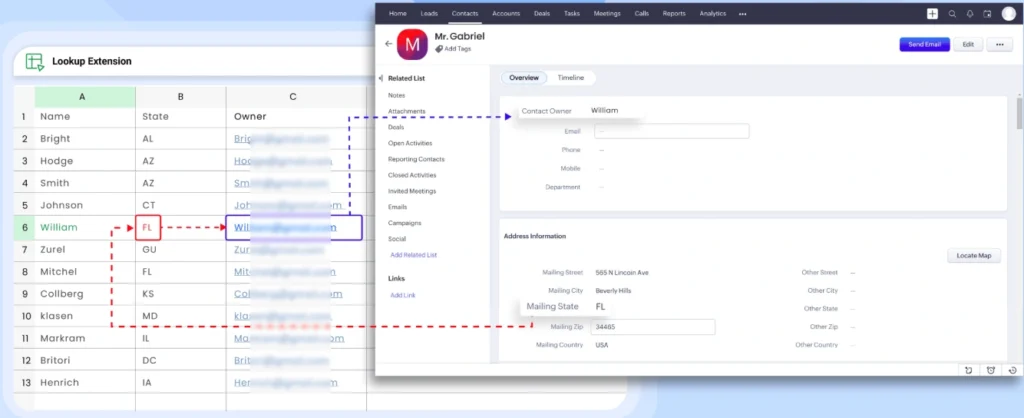
Example Scenario: Assign Contact Owners Based on Mailing State
A company manages ownership rules in Zoho Sheet and wants those rules reflected automatically in Zoho CRM.
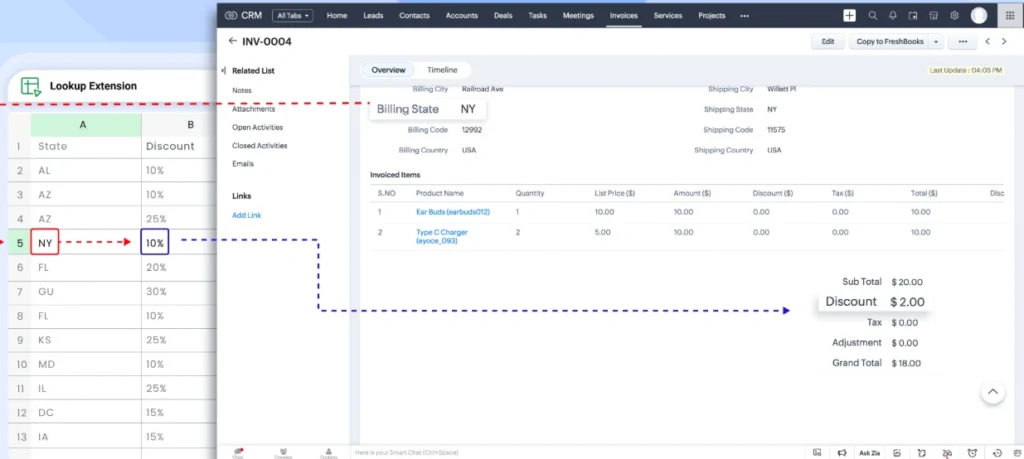
Workflow Configuration Used
- CRM Module – Contacts
- CRM Lookup Field – Mailing State
- CRM Field to Update – Contact Owner
- Sheet Lookup Header – Mailing State
- Sheet Field to Update – Email ID
This configuration defines how records are matched and what data is updated.
What Happens During Workflow Execution
- The extension scans Contact records in Zoho CRM
- It reads the Mailing State value from each record
- It searches Zoho Sheet for a matching Mailing State header
- It identifies the corresponding row dynamically
- It fetches the Email ID from that row
- It updates the Contact Owner field in Zoho CRM
Each step is executed sequentially to ensure data accuracy.
Key Takeaway
Magic Lookup workflows act as a controlled data bridge between Zoho Sheet and Zoho CRM, ensuring that spreadsheet-driven decisions are reflected accurately in your CRM system.
Audit Logs and Monitoring – Track Every Zoho CRM Update #
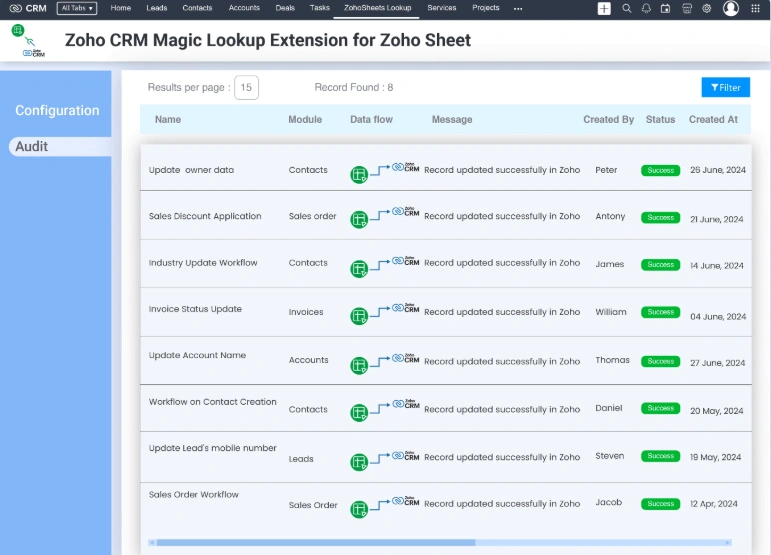
The Audit Logs section provides full visibility into every workflow execution performed by the extension. It helps teams monitor activity, validate updates, and quickly diagnose issues when syncing data between Zoho CRM and Zoho Sheet.
What You Can See in Audit Logs
For each workflow execution, the audit log displays:
- Date and time of execution
- CRM record identifier
- The field that was updated
- Success or failure status
- Clear and descriptive error messages (if applicable)
This level of detail ensures transparency and accountability for all automated updates.
Understanding Workflow Failures
A workflow may fail due to configuration or data issues, such as:
- Field type mismatch between Zoho CRM and Zoho Sheet
- The incorrect Zoho Sheet column was selected during configuration
- Invalid data values (for example, using a phone number to update a Contact Owner field)
Audit logs clearly indicate the reason for failure, allowing you to correct the configuration and rerun the workflow confidently.
Security and Permissions – Safe Zoho sheets and Zoho CRM Integration #
Security and data integrity are built into every stage of the Magic Lookup workflow.
Data Access Control
- The extension accesses only the Zoho Sheet and columns you explicitly select
- CRM updates are limited strictly to the fields configured in the workflow
Role-Based Permissions
- All actions respect the existing Zoho CRM role and profile permissions
- Users cannot update records or fields that they do not already have access to
Data Privacy and Compliance
- No data is stored outside the Zoho ecosystem
- All communication follows Zoho’s security and compliance standards
This ensures enterprise-grade safety while automating CRM updates.
FAQs #
1. How does Zoho Sheets Magic Lookup update CRM records from Zoho CRM?
The Zoho CRM Magic Lookup Extension for Zoho Sheet updates CRM records using a lookup-based matching process. Instead of relying on row numbers or manual imports, the extension,
– Matches Zoho CRM records using a selected lookup field (such as Email or Mailing State)
– Finds the corresponding row in Zoho Sheet using the same field header
– Fetches the update value from the selected sheet column
– Updates only the configured field in Zoho CRM
This ensures accurate, rule-based CRM updates without overwriting unrelated data.
2. Can I use this extension to update multiple Zoho CRM modules?
Yes. The extension supports updating multiple Zoho CRM modules, including:
– Contacts
– Leads
– Accounts
– Deals
3. Is it safe to connect Zoho Sheet with Zoho CRM using this extension?
Yes. The extension follows Zoho’s built-in security and permission framework.
– It accesses only the Zoho Sheet and columns you explicitly select
– It updates only the CRM fields you configure
– All actions respect existing CRM role and profile permissions
– No data is stored outside the Zoho ecosystem
This makes the integration secure, compliant, and suitable for enterprise use
4. What happens if a workflow fails or the data does not match between Zoho Sheets and Zoho CRM?
If a workflow fails, the extension records the failure in the Audit Logs section with a clear reason.
Common causes include,
– Field type mismatch between Zoho Sheet and Zoho CRM
– Incorrect column selection during configuration
– Invalid data (for example, using a phone number to update a Contact Owner field)
The audit log allows you to identify the issue quickly, correct the configuration, and rerun the workflow with confidence
Support and Assistance #
If you need help with installation, configuration, or workflow behavior, our support team is available to assist you.
For technical support or feature-related questions, contact us at: [email protected]