
The Todoist for Zoho CRM enhances your productivity by syncing your Zoho CRM tasks and projects with Todoist, ensuring smooth task management and streamlining your workflow. This integration allows you to track tasks, collaborate with your team, and maintain up-to-date project status across both platforms.
Installation #
- Login to your Zoho CRM account.
- Navigate to the marketplace section from the top side menu
- Search for the Todoist for Zoho CRM
- You can get a free-trial of ten days or you can directly purchase the extension on a monthly/yearly subscription.
- Once installed, navigate to the modules tab and search for Todoist.
- The authorization window will be displayed.
Connect Zoho CRM
Click on Connect corresponding to the Zoho CRM. Review the terms and click on accept
Connect Todoist
Click on Connect corresponding to the Todoist. And login to the Todoist account.
1. Dashboard #
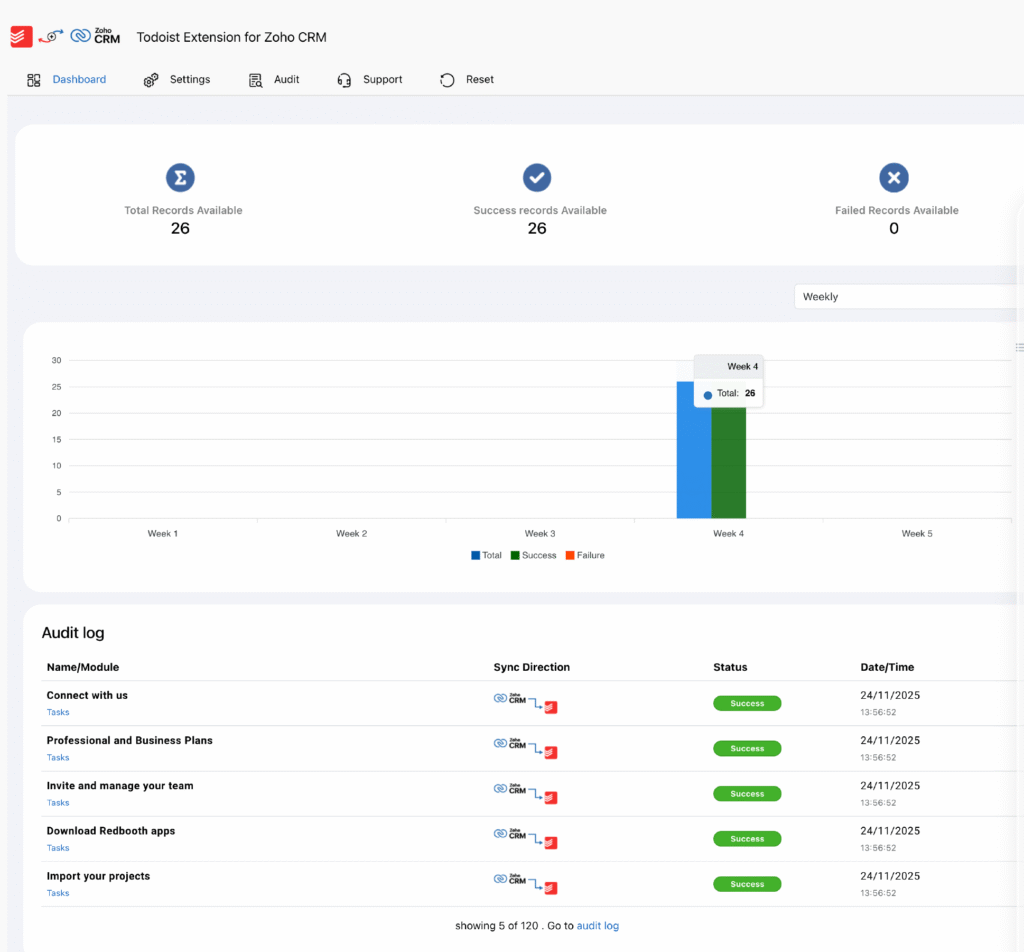
The Dashboard serves as the central hub for monitoring the synchronization status between Zoho CRM and Todoist. It provides a quick overview of your integration activities and allows you to troubleshoot sync issues if they arise.
Sync Overview
Displays important metrics of record synced, such as:
- Total number of records synced
- Number of records successfully synced
- Number of failed records
Recent Syncs
Quickly see the most recent syncs between Todoist and Zoho CRM, including tasks and projects that were just updated.
Sync Status
Visual indicators (color-coded bar graph: success, failure, in-progress) provide instant insight into sync health.
Audit Log Access
Navigate directly to the Audit Logs for detailed tracking of sync activities, errors, and troubleshooting.
2. Settings #
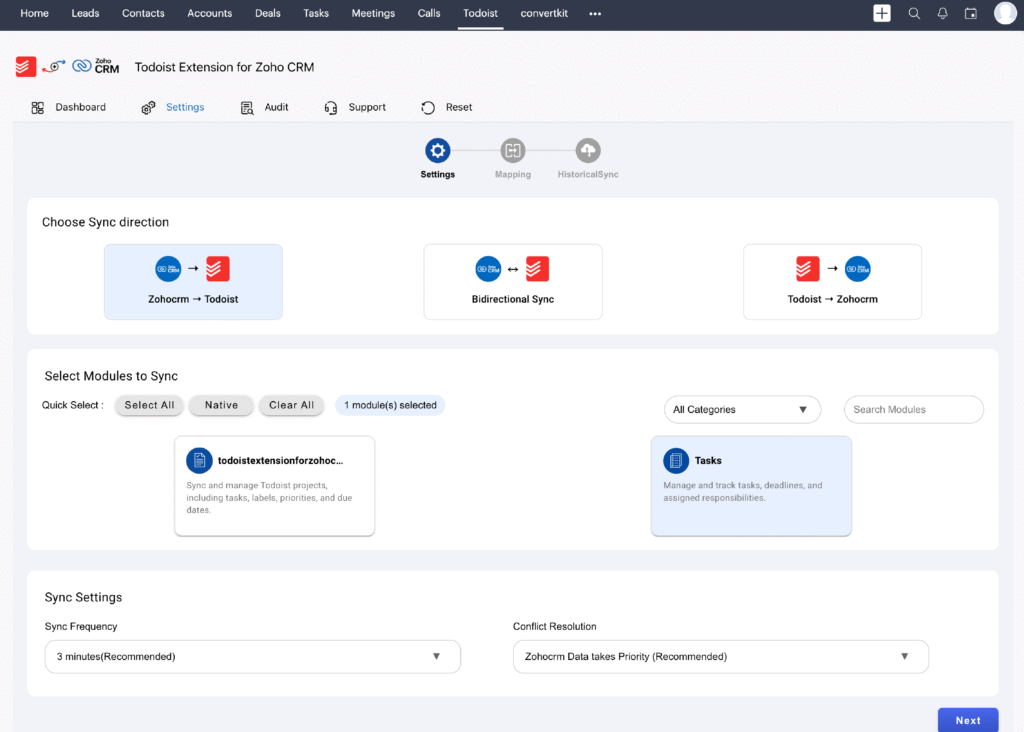
The Settings page allows you to configure how the data will be synchronized between Zoho CRM and Todoist, ensuring that your tasks and projects sync according to your preferences.
2.1 Sync Direction
Choose the direction of sync for tasks and projects:
- Zoho CRM → Todoist
Sync tasks and projects created in Zoho CRM to Todoist. - Todoist → Zoho CRM
Sync tasks and projects created in Todoist to Zoho CRM. - Bidirectional Sync
Enable sync in both directions, ensuring that updates on either platform are reflected across both systems.
2.2 Module Selection
Select which modules you want to sync between Zoho CRM and Todoist such as projects and tasks.
On selecting native modules it shows how all the supported Zoho CRM modules except custom modules.
You can also selecting the module with its category.
2.3 Sync Frequency (CRON Scheduler)
Define how often your data will be synced:
- Default: Sync every 3 minutes.
- Optional settings: Sync every 10 minutes or 1 minutes.
2.4 Conflict Resolution
Set rules for handling conflicting updates:
- Zoho CRM Priority: Zoho CRM updates Todoist records.
- Todoist Priority: Todoist updates Zoho CRM records.
2.5 Field Mapping
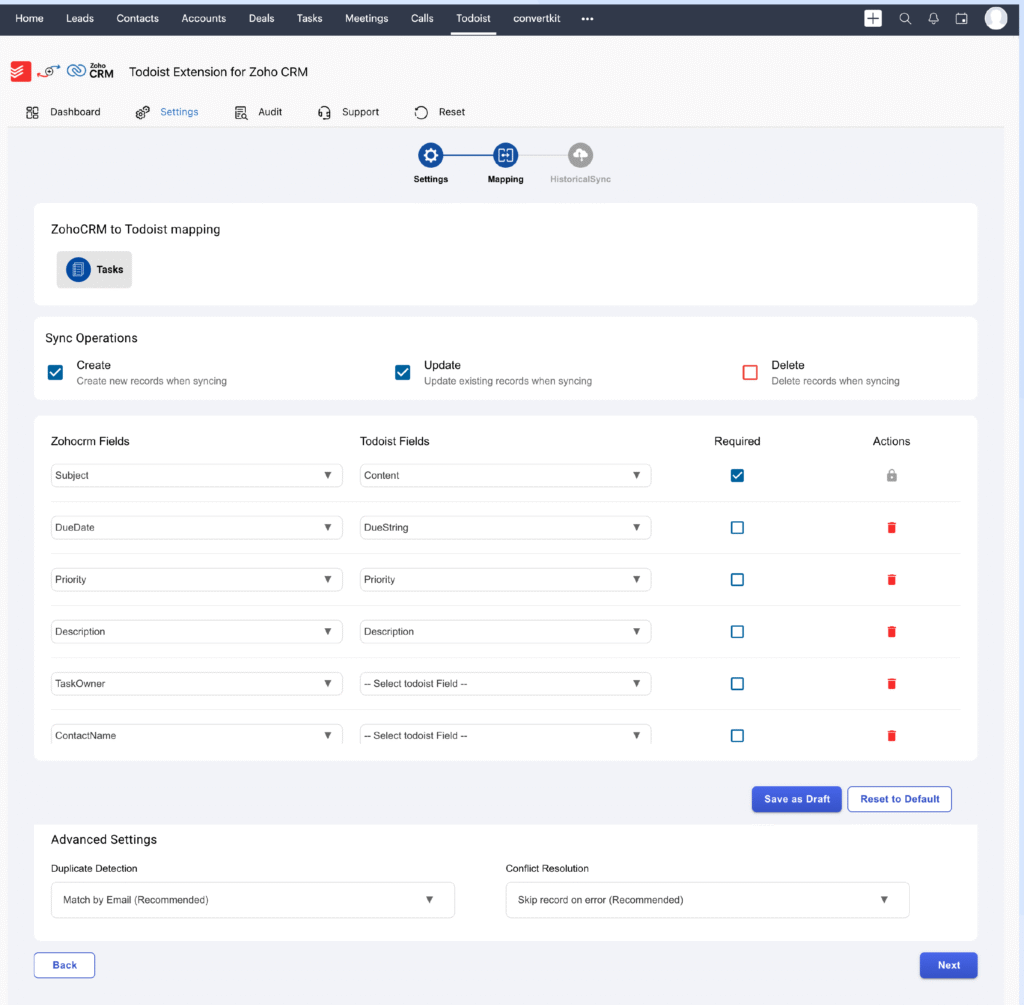
Ensure that your Zoho CRM and Todoist fields are properly aligned for data sync:
- Default Mappings: Auto-map fields between Zoho CRM and Todoist based on matching field types.
- Custom Mapping: Modify or add custom field mappings.
- Reset Mapping: Revert to the default field mapping if needed.
3. Historical Sync #
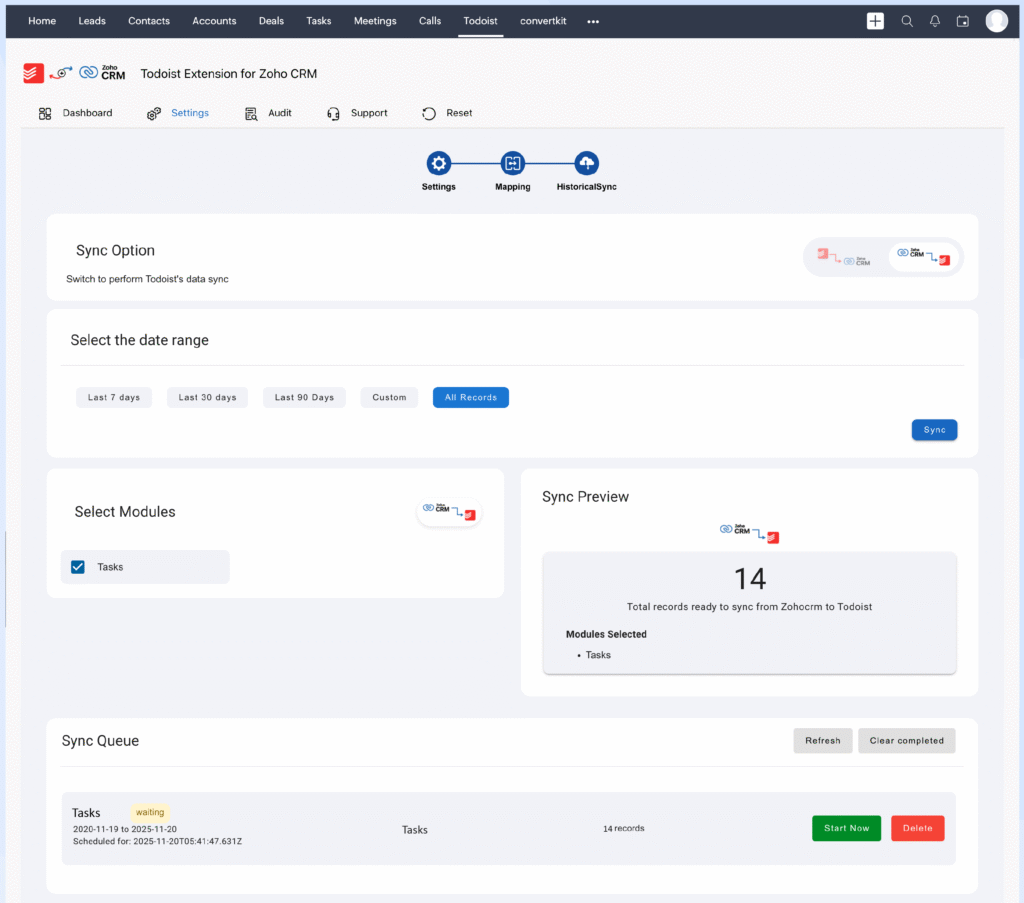
The Historical Sync feature allows you to sync past records between Zoho CRM and Todoist.
Steps to Perform Historical Sync:
- Choose the sync direction (Zoho CRM → Todoist or Todoist → Zoho CRM).
- Select the module (e.g., Projects or Tasks).
- Choose a date range (e.g., Last 7 Days, Last 30 Days, Custom Date Range).
- Sync up to 500 records per operation (contact support for larger volumes).
Queue Management:
- Start Now: Start syncing the records immediately.
- Delete: Remove specific modules from the queue.
- Refresh: Update the queue view.
- Clear Completed: Remove successfully synced records from the queue.
This ensures that your historical data is correctly synced across both platforms without interfering with ongoing operations.
4. Audit Log #
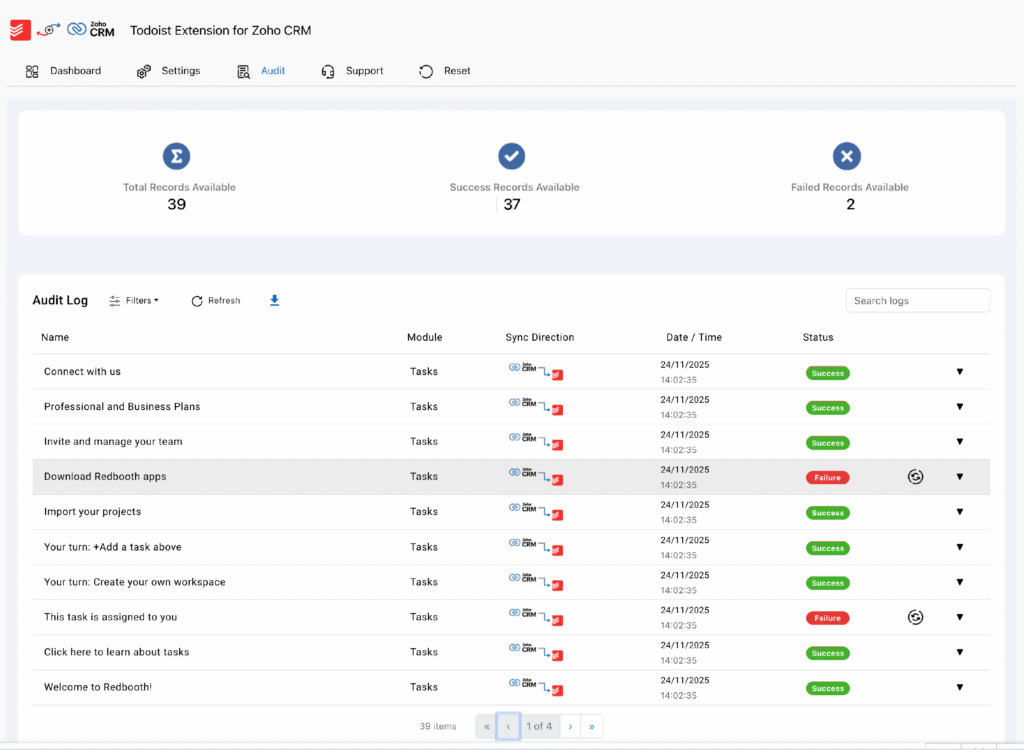
The Audit Log provides detailed insights into your synchronization activities, offering a transparent record of success, failure, and errors.
Displays sync direction, status, and record details.
Error Insights: View detailed error messages to understand any issues.
Resync Option: Retry syncing failed records directly from the Audit page.
Filters: Search records by module, record name, or date range to troubleshoot and track performance.
Export & Download:
Download: Easily download the error report of failed records as JSON files.
Export Audit Log: Download the entire audit log for reporting purposes.
If you need to any assistance feel free to reach out to us at [email protected].