
The Zoho QuickBooks Extension connects Zoho CRM with QuickBooks to automatically sync CRM and accounting data. Once connected, customer records, invoices, products, and financial information stay synchronized across both platforms without manual updates.
This guide explains how to configure the Zoho QuickBooks extension for zoho crm to sync CRM and accounting data automatically. Using the Zoho QuickBooks extension for zoho crm, businesses can avoid duplicate entries and keep financial data accurate.
Overview #
The Zoho QuickBooks Extension helps you
- Sync CRM and accounting data automatically
- Avoid duplicate data entry
- Keep customer and financial records accurate
- Align sales and finance teams in real time
It is designed for businesses operating across regions and time zones.
How to Connect Zoho CRM and QuickBooks #
Use the steps below to install and configure the integration.
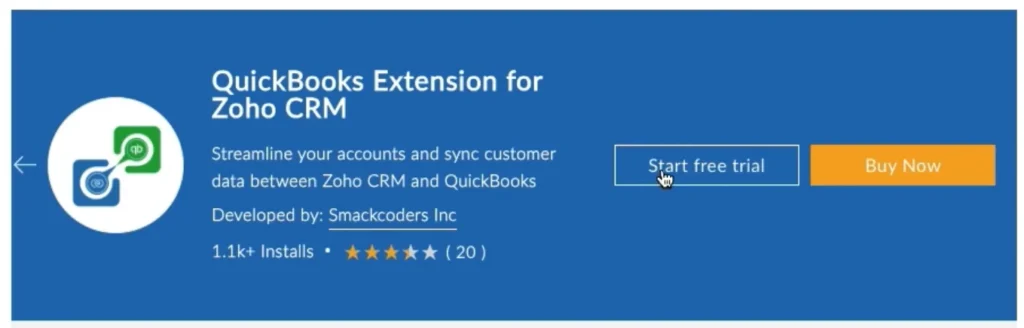
Step 1: Install the Extension
- Go to Zoho Marketplace
- Search for Zoho QuickBooks Extension
- Click Free Trial or Buy Now
- Install the extension in Zoho CRM
Step 2: Open the QuickBooks Module in Zoho CRM
- Log in to Zoho CRM
- Open the Modules menu
- Click QuickBooks
The system opens the extension setup page to complete the configuration.
Step 3: Connect Your QuickBooks Account
- Click Connect in the QuickBooks section
- Sign in to your QuickBooks Online account
- Choose your company:
- Select Yes if a company already exists
- Select No to create a new company and return
- Confirm your company selection
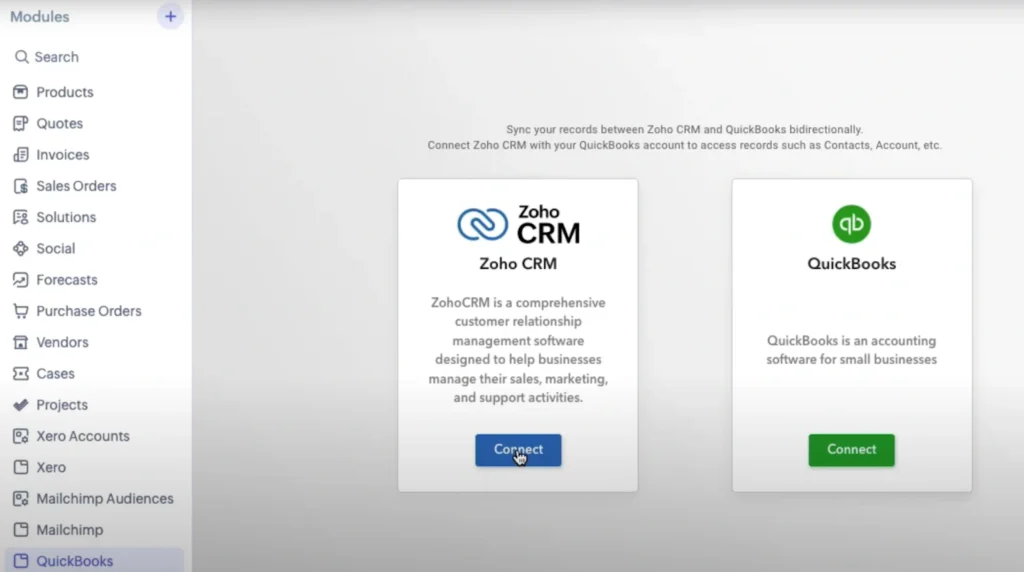
Step 4: Authorize Zoho CRM
- Click Connect next to Zoho CRM
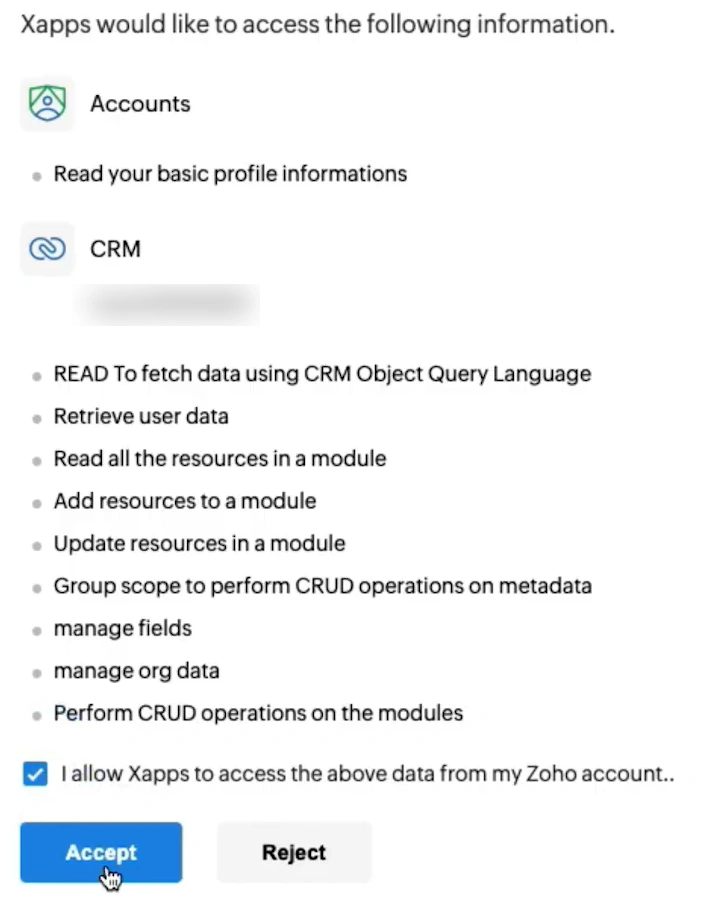
- Review the requested permissions
- Click Accept
Your Zoho CRM and QuickBooks accounts are now connected.
Supported Modules for Zoho CRM QuickBooks Integration #
The Zoho QuickBooks Extension synchronizes key business records between Zoho CRM and QuickBooks.
You can choose which modules to sync based on your business needs.
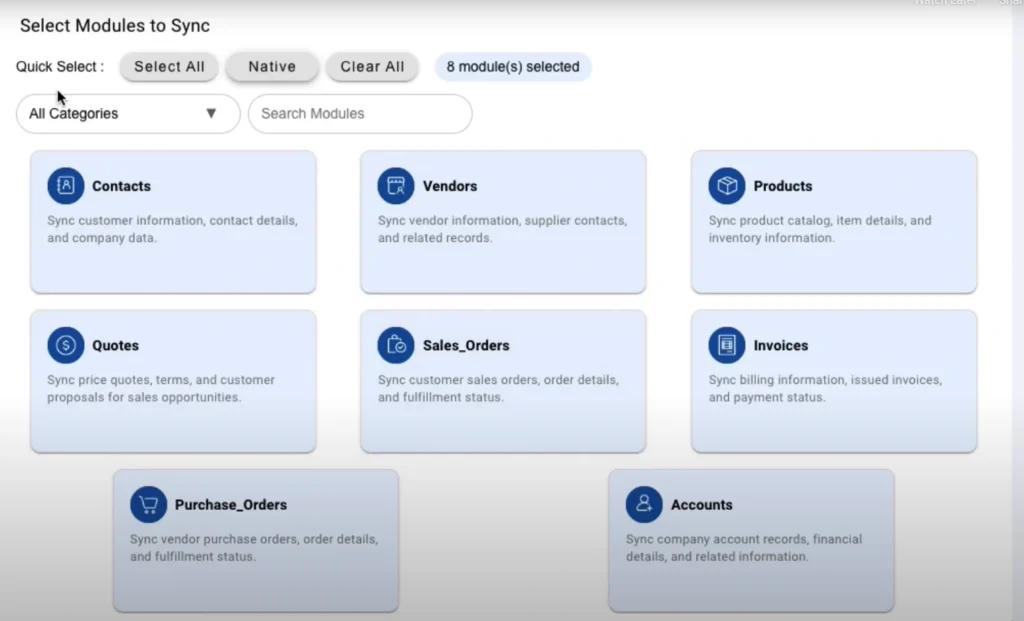
CRM and Accounting Modules Supported
The following modules are supported for synchronization:
- Contacts and Customers – Sync customer names, contact details, billing, and shipping information.
- Products & Inventory – Keep product names, SKUs, prices, and stock details consistent across systems.
- Invoices – Sync invoice records created in either Zoho CRM or QuickBooks.
- Quotes – Ensure sales quotes reflect accurate pricing and customer details.
- Sales Orders – Maintain alignment between sales and fulfillment data.
- Purchase Orders – Sync purchase records for better vendor and inventory tracking.
- Vendors – Keep vendor information consistent for procurement and accounting.
How Data Synchronization Works #
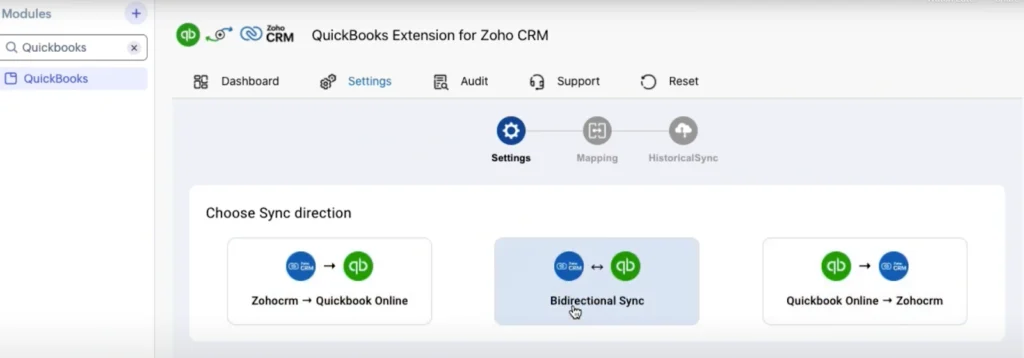
The integration supports flexible sync behavior, allowing data to move based on your configuration.
Available Sync Directions
- Zoho CRM → QuickBooks – Records created or updated in Zoho CRM sync to QuickBooks.
- QuickBooks → Zoho CRM – Records created or updated in QuickBooks sync to Zoho CRM.
- Bi-Directional Sync – Records update on both platforms automatically.
This ensures data remains accurate regardless of where updates are made.
Automatic and Manual Sync Options in Zoho CRM–QuickBooks Integration #
The Zoho QuickBooks Extension supports both:
- Automatic Sync – Records sync at scheduled intervals using the CRON scheduler.
- Manual Sync – Users can sync records instantly when required.
This flexibility supports real-time operations as well as controlled data updates.
Conflict Handling During Sync
When the same record is updated in both systems, the extension resolves conflicts based on your priority setting:
- Zoho CRM Priority – CRM data overwrites QuickBooks
- QuickBooks Priority – Accounting data overwrites CRM
This prevents data mismatches and unintended overwrites.
How to Monitor Sync Activity Using the Zoho CRM–QuickBooks Dashboard #
Integration Dashboard Overview
The Dashboard is the central place to monitor all synchronization activity between Zoho CRM and QuickBooks.
It provides a quick and clear view of:
- How many records are synced
- Whether syncs are successful or fail
- Recent sync activity
- Overall sync performance over time
This helps administrators and operations teams track data accuracy without technical effort.
Sync Summary Metrics
The dashboard displays key synchronization metrics, including:
- Total Records Synced – The overall number of records processed.
- Successful Syncs – Records that synced correctly without errors.
- Failed Syncs – Records that failed due to validation or data conflicts.
These metrics allow quick identification of issues.
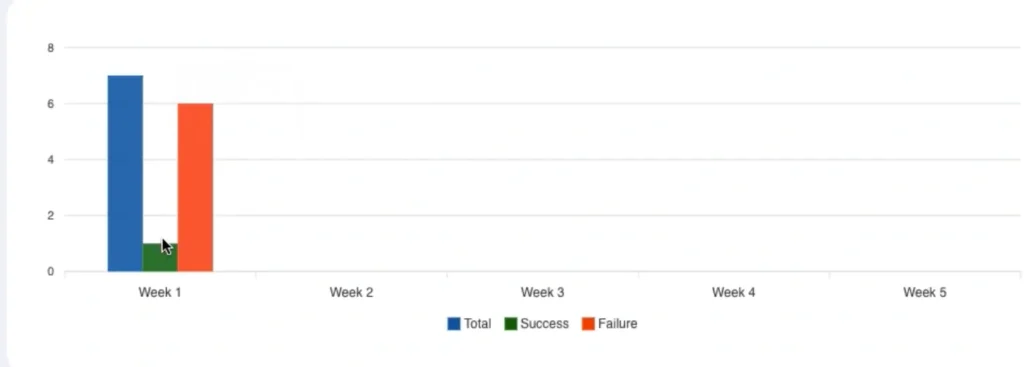
Sync Performance Analytics
A visual line chart shows sync activity trends over time.
You can:
- Identify peak sync periods
- Track performance consistency
- Detect recurring sync failures
This is especially useful for teams managing large data volumes.
Date Range Filtering
The dashboard provides a date range filter to help you
- View sync activity for a specific day
- Analyze weekly or monthly sync trends
- Isolate recent sync issues quickly
This makes troubleshooting faster and more targeted.
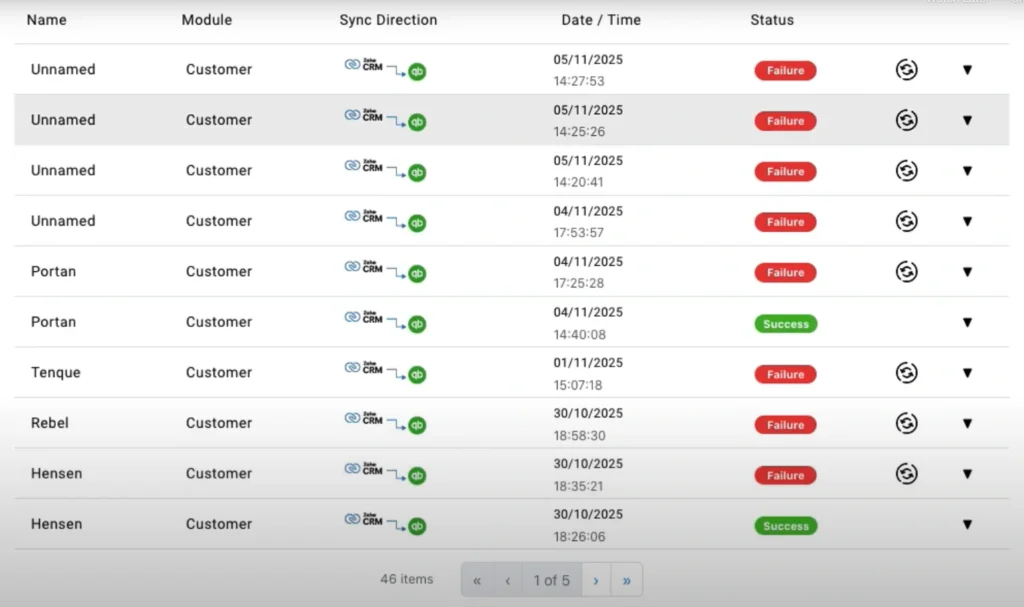
Recent Record Syncs
The dashboard shows the five most recent sync activities, including
- Module name
- Record name
- Sync status (success or failure)
- Timestamp
This enables quick validation of the latest data updates.
Accessing the Audit Log
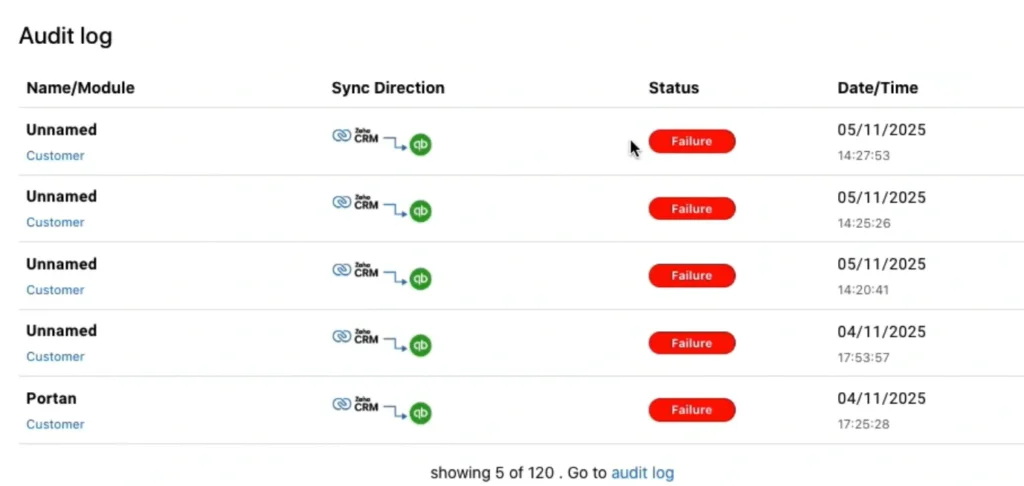
From the dashboard, you can click Audit Log to view detailed sync history.
The audit log provides:
- Record-level sync details
- Error messages for failed records
- Options to re-sync failed records
This ensures full transparency and traceability.
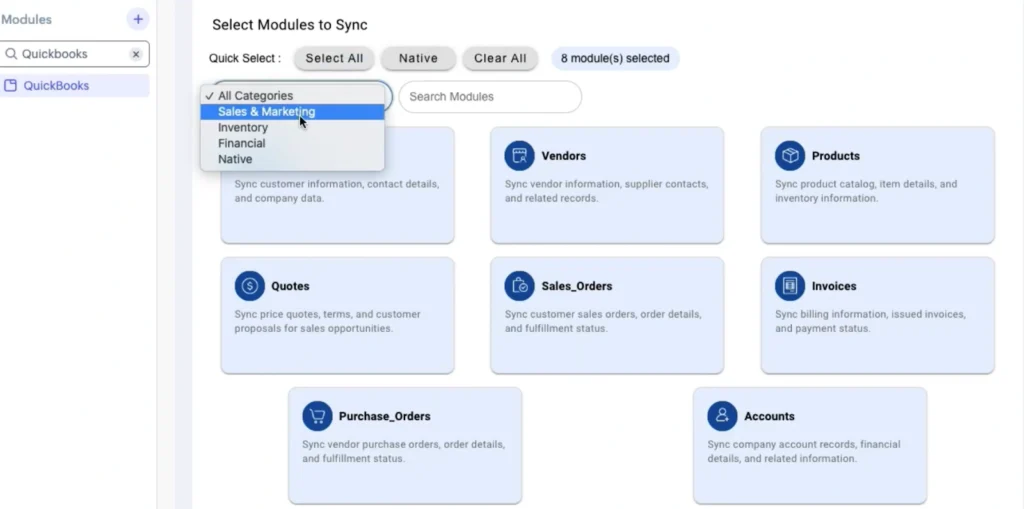
Module Selection
Module Selection allows you to choose which records should be synchronized.
How Module Selection Works
- Click Core Only to view essential QuickBooks modules (such as Customers)
- Click Category to filter modules by:
- Inventory
- Finance
- Other related categories
- Enable or disable modules based on business requirements. Only selected modules will participate in synchronization.
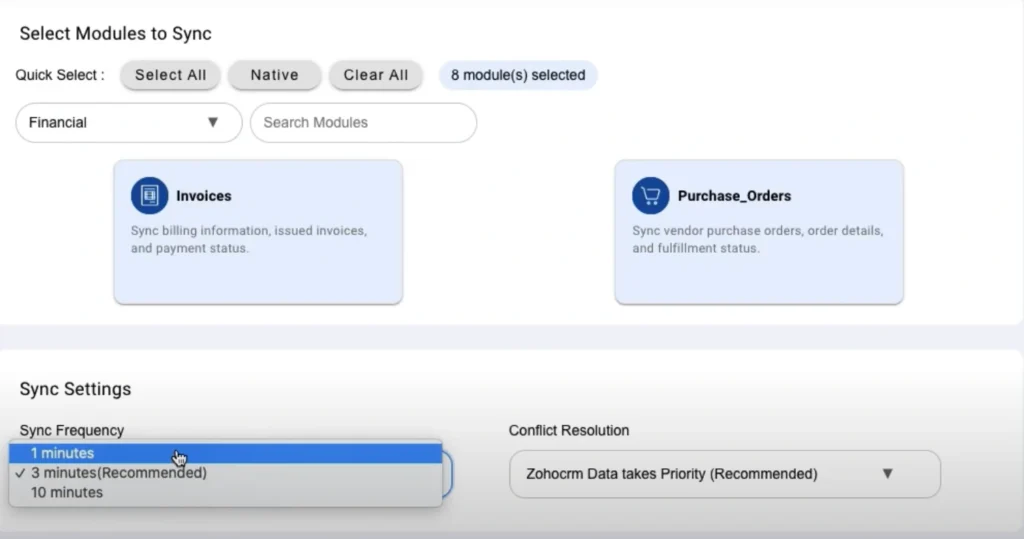
Sync Frequency (CRON Scheduler)
Sync Frequency determines how often data is synchronized automatically.
Available Options
- Default: Every 3 minutes
- Optional: Every 5 minutes
- Advanced: Every 1 minute (available on request)
The CRON scheduler ensures that new or updated records are synced without manual action.
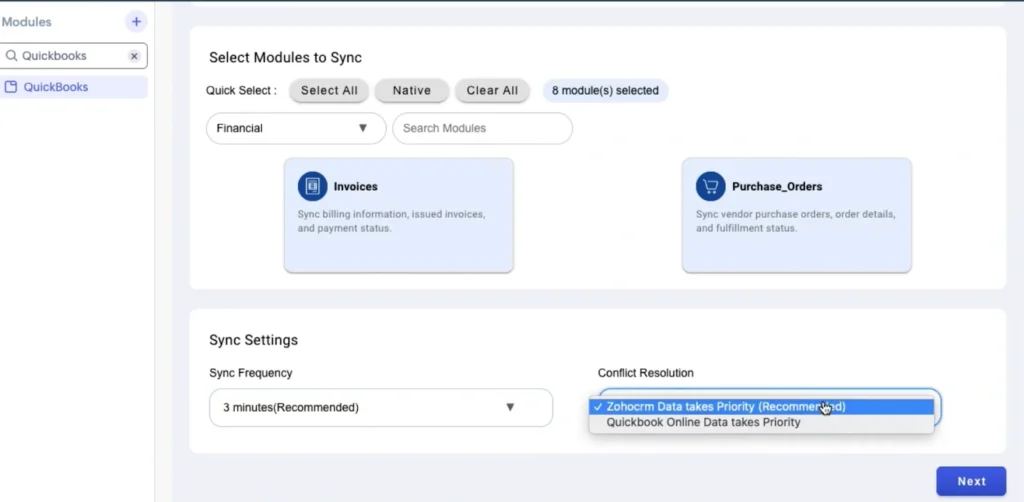
Conflict Resolution #
Conflicts occur when the same record is updated in both systems. You can define which system should take priority.
Conflict Resolution Options
- Zoho CRM Priority – Zoho CRM data overwrites QuickBooks records.
- QuickBooks Priority – QuickBooks data overwrites Zoho CRM records.
This prevents inconsistent data and unintended overwrites.
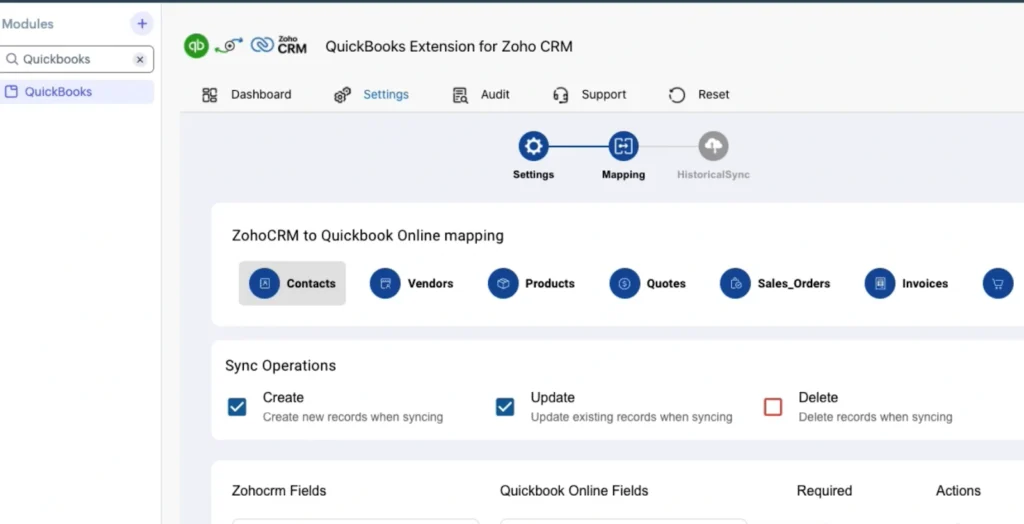
How to Map Standard and Custom Fields Between Zoho CRM and QuickBooks #
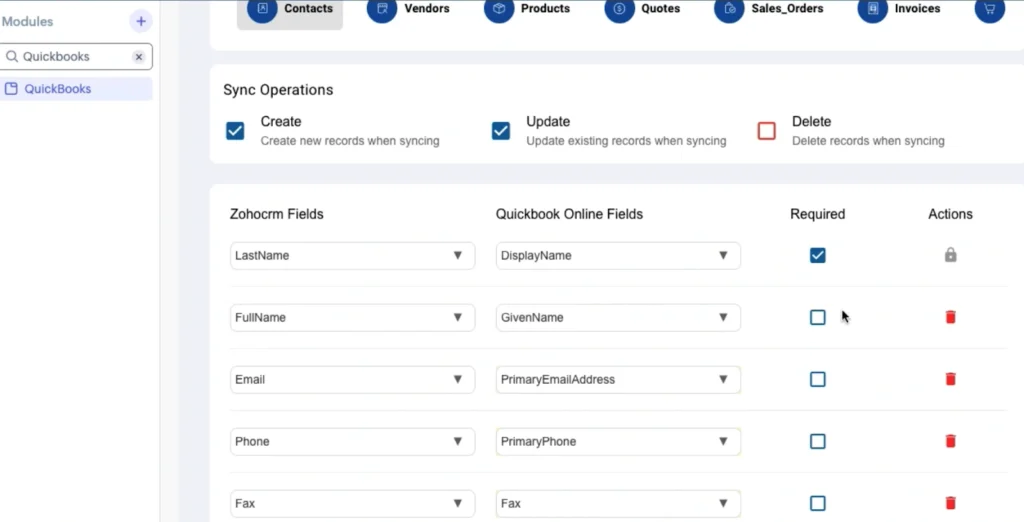
Field Mapping defines how data fields in Zoho CRM correspond to fields in QuickBooks during synchronization.
Accurate field mapping ensures that the right data appears in the right place across both systems and prevents sync errors.
Default Field Mapping
When you enable a module for synchronization:
- The extension automatically applies default field mappings
- Common fields such as names, emails, prices, quantities, and totals are mapped by default
- Default mapping works for most standard business use cases
This allows you to start syncing records immediately without manual configuration.
Custom Field Mapping
If your business uses custom fields, you can manually map them.
How to Customize Field Mapping
- Open the Field Mapping section
- Select the required module
- Use the dropdown menu to:
- Change existing field mappings
- Map Zoho CRM custom fields to QuickBooks fields
- Add new field mappings if required
- Save the configuration
Custom mapping allows the integration to align with unique business processes.
Saving and Managing Field Mappings
The extension provides multiple options to manage mappings safely.
Available Options
- Save as Draft – Save changes without applying them immediately.
- Update Mapping – Apply the field mapping to active synchronization.
- Reset Auto-Mapping – Restore default mappings for new configurations.
These options reduce the risk of data inconsistencies during updates.
How to Perform Historical (Bulk) Data Sync Between Zoho CRM and QuickBooks #
Historical Sync allows you to synchronize existing (past) records between Zoho CRM and QuickBooks in bulk.
This feature is useful when:
- Setting up the integration for the first time
- Migrating existing data
- Aligning records created before enabling automatic sync
Historical Sync ensures that older records are synchronized without interrupting current workflows.
How Historical Sync Works
The Historical Sync process works in batches and follows your configured sync settings.
Key Characteristics
- Syncs records in bulk batches
- Follows the selected sync direction
- Respects field mapping and conflict resolution rules
- Does not affect real-time or scheduled syncs
This ensures the integration can be used reliably in production environments.
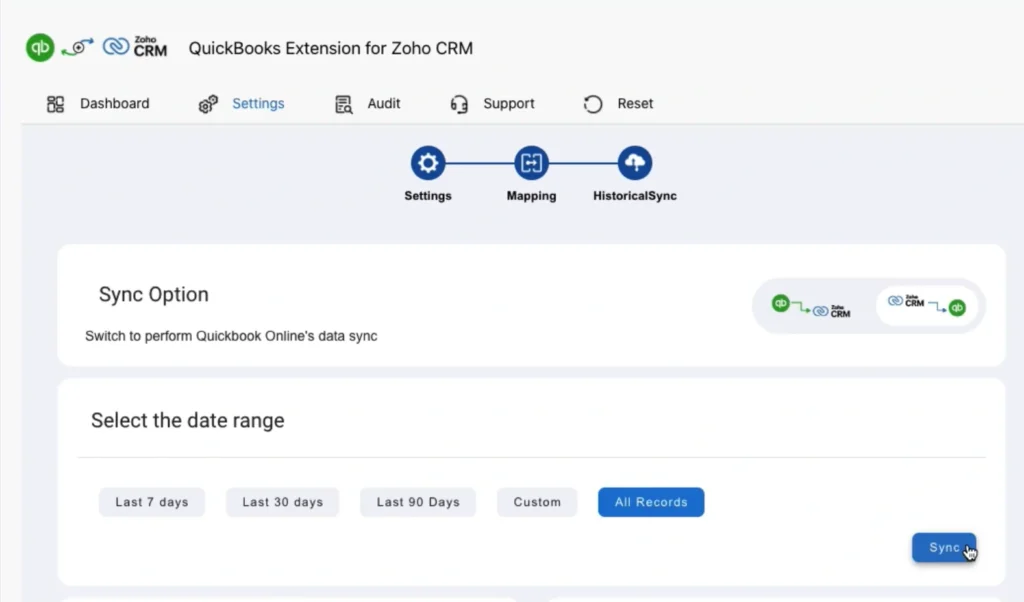
Steps to Perform Historical Sync
Follow these steps to sync records
Step 1: Select Sync Direction
Choose the sync direction already configured in Settings
- Zoho CRM → QuickBooks
- QuickBooks → Zoho CRM
Step 2: Select the Module
Choose the module you want to sync, such as:
- Contacts
- Invoices
- Products
- Sales Orders
- Purchase Orders
- Vendors
Only one module can be queued per batch.
Step 3: Choose Date Range
Select the time period for records to be synced:
- Custom date range
- Last 7 days
- Last 30 days
- Last 90 days
This allows precise control over which records are included.
Step 4: Review Record Count
The system displays:
- Total number of records
- Estimated time required for sync
You can sync up to 500 records per batch.
For higher volumes, contact support.
Step 5: Queue the Sync
Click Sync to add the records to the queue.
Managing the Historical Sync Queue
Once records are queued, you can manage them using the queue controls.
Available Queue Actions
- Start Now – Begin syncing queued records immediately
- Delete – Remove a module from the queue
- Refresh – Update the queue status
- Clear Completed – Remove successfully synced records
This gives full control over bulk sync operations.
Audit Log & Error Handling #
The Audit Log provides a detailed record of all synchronization activities between Zoho CRM and QuickBooks.
It is designed to give complete transparency into:
- What records were synced
- When the sync occurred
- Whether the sync was successful or failed
- Why a sync failed and how to fix it
The Audit Log is essential for troubleshooting, compliance, and operational monitoring.
Accessing the Audit Log #
You can access the Audit Log in two ways:
- From the Dashboard, using the Audit Log link
- Directly from the Audit Log section in the extension menu
Once opened, all sync activities are listed in chronological order.
Filtering and Searching Logs #
The Audit Log includes filters to help you find records faster.
Available Filters
- Module name
- Record name
- Sync status (success or failure)
- Date range
Filters are especially useful when working with high data volumes.
Handling Failed Sync Records
Failed sync records can be easily identified in the Audit Log, where you can re-sync corrected records instantly and avoid duplicate data entry. You can also export the complete audit log or failed records in JSON format for troubleshooting, compliance, and reporting purposes.
Frequently Asked Questions #
Does Zoho CRM integrate with QuickBooks?
Yes. Zoho CRM integrates with QuickBooks Online using the Zoho QuickBooks Extension, enabling secure and automated Bi-Directional data synchronization.
What records are synchronized between Zoho CRM and QuickBooks?
The integration supports synchronization of
– Contacts / Customers
– Products
– Invoices
– Quotes
– Sales Orders
– Purchase Orders
– Vendors
How often does data sync occur between Zoho CRM and QuickBooks?
You can sync records manually or automatically using the CRON scheduler. Automatic sync can run as frequently as every 3 minutes, with faster intervals available on request.
Can I customize the Zoho CRM and QuickBooks integration?
Yes. You can configure sync direction, module selection, field mapping, conflict resolution, and sync frequency based on your business requirements.
What should I do if a record fails to sync between Zoho CRM and QuickBooks?
Use the Audit Log to view error details, correct the issue, and re-sync the record directly from the log.
Support and Assistance #
Email: [email protected]
Our team ensures you get the best possible experience with the Zoho QuickBooks Extension.
The Zoho QuickBooks extension for zoho CRM provides a reliable and scalable integration for sales and finance teams.