
Bidirectional sync between your CRM and accounting platform
The Xero Zoho CRM Integration allows administrators to connect Zoho CRM with Xero accounting software and configure bidirectional data synchronization between sales and finance records. This allows administrators to keep sales and finance records synchronized across both platforms.
Key Features
- Eliminates duplicate data entry by automatically syncing information between Xero and Zoho CRM.
- Allows invoices to be created in Zoho CRM or Xero and keeps them synchronized across both platforms.
- Syncs Xero products and contacts directly with Zoho CRM’s Products and Accounts modules.
- Displays all Xero invoices for a customer inside Zoho CRM, including Paid and Overdue status.
- Supports multi-currency transactions, making it easy to manage global business operations.
- Automatically updates Zoho CRM with data from Xero through a reliable one-way sync.
- Provides clear sync history and status tracking so users can see exactly what data was synced.
Our Xero extension automatically syncs customer, invoice, and product data from Xero to Zoho CRM in real time, giving teams instant access to financial information inside the CRM without manual exports or data re-entry.
Sync Capabilities #
- Bidirectional Sync – Changes in either platform automatically update the other
- Real-Time Updates – Configure sync frequency from 1-5 minute intervals
- Conflict Resolution – Define which platform takes precedence when conflicts occur
- Historical Sync – Bulk import records (up to 500 records per operation)
Prerequisites #
- Zoho CRM account with Administrator access
- Active Xero account
- At least one Xero organization
- Marketplace access enabled
How to Install Xero Zoho CRM Integration #
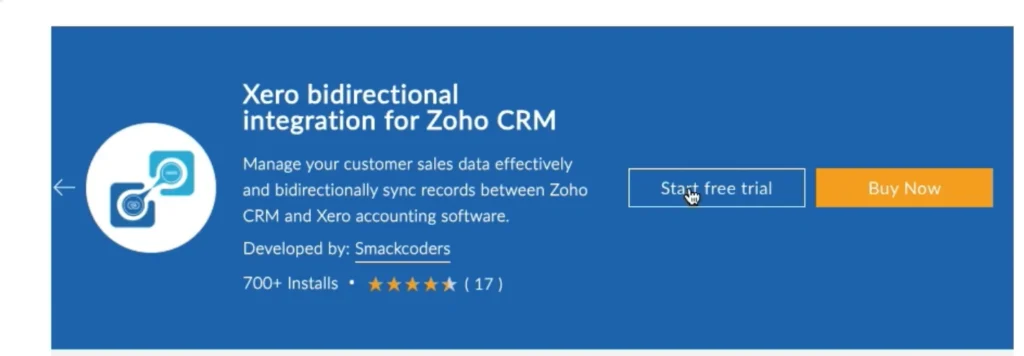
Step 1: Install from Marketplace
- Navigate to Marketplace from the top menu in Zoho CRM
- Search for Xero Bidirectional Integration
- Select your subscription plan (10-day free trial available)
- Complete the installation process
Step 2: Connect Xero Zoho CRM Integration
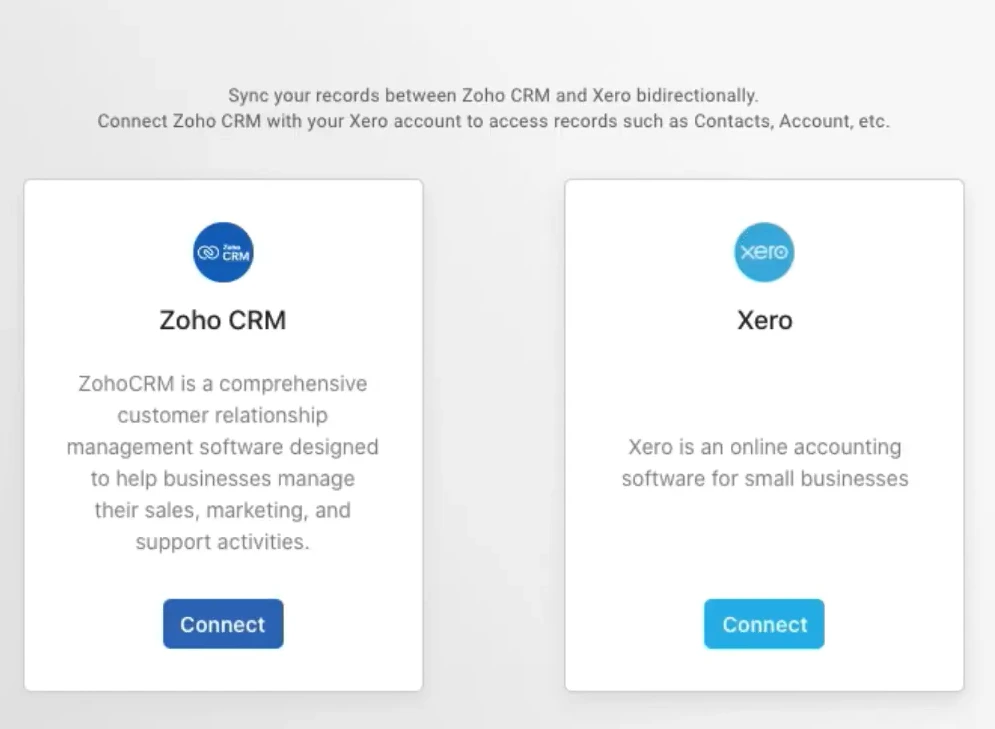
- Go to Modules → Xero in your Zoho CRM
- Click Connect in the Xero section
- Log in to your Xero account
- Select your organization (if you have multiple)
- Click Accept to authorize data access
Step 3: Authorize Zoho CRM
- Click Connect in the Zoho section
- Review permissions and click Accept
Both platforms are now connected and ready for configuration.
How to Configure Xero Zoho CRM Integration #
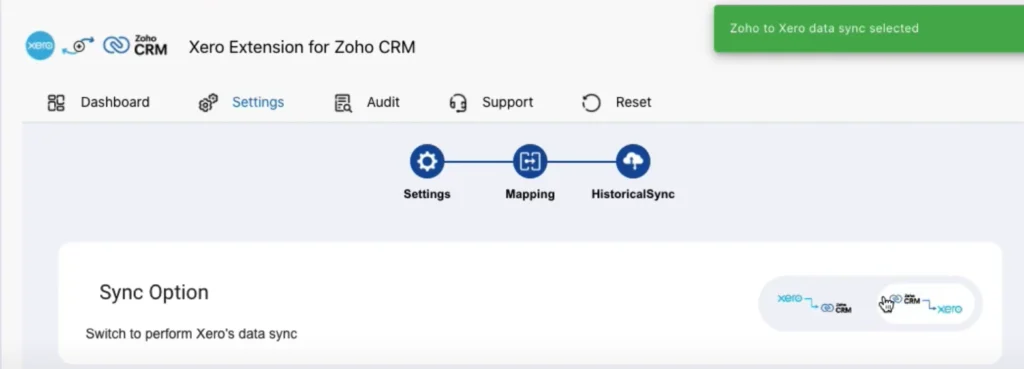
Sync Direction
Choose how data flows between platforms
| Direction | Description |
| Zoho CRM → Xero | Changes in CRM update Xero only |
| Xero → Zoho CRM | Changes in Xero update CRM only |
| Bidirectional | Changes sync in both directions |
Recommended Setting: Bidirectional Sync.
Module Selection
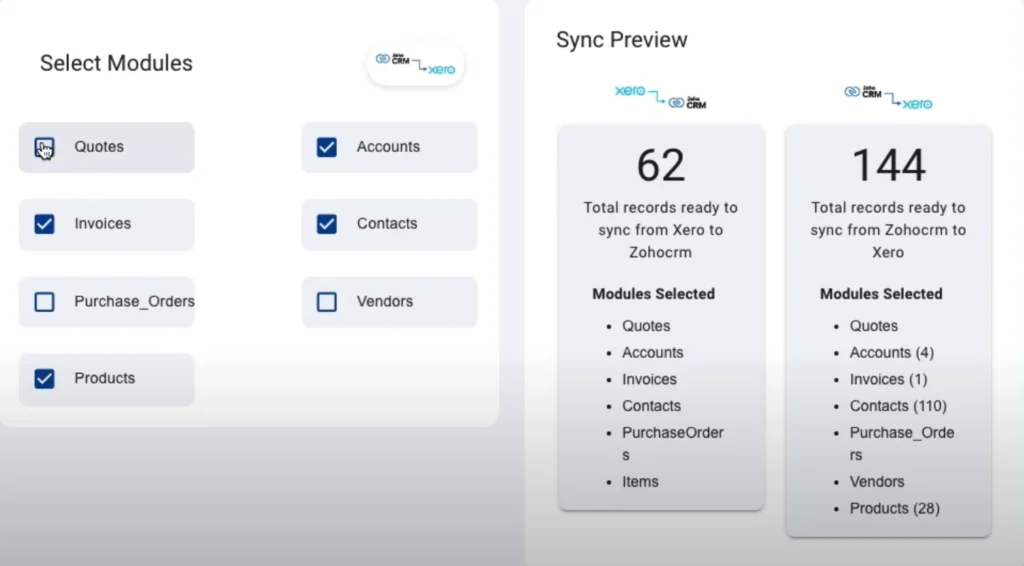
Select which data types to synchronize:
- Core Modules – Essential records like Contacts and Accounts
- Inventory Modules – Products, stock items, price lists
- Finance Modules – Invoices, payments, purchase orders
You can enable or disable individual modules based on your workflow requirements.
Sync Frequency
Configure automatic synchronization intervals:
- Every 3 minutes (default)
- Every 5 minutes
- Every 1 minute (requires support activation)
The CRON scheduler runs at your specified interval to keep data current.
Conflict Resolution
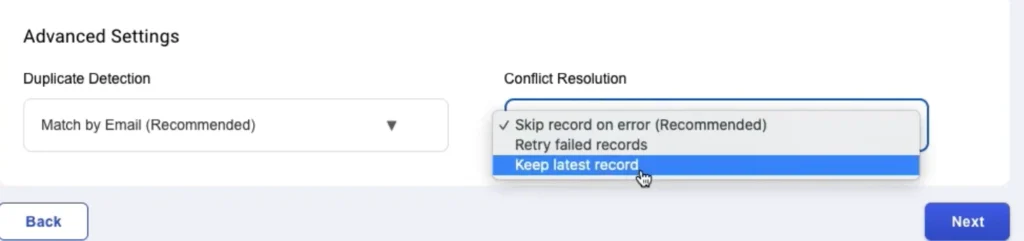
When the same record is modified in both platforms, define priority:
- Zoho CRM Priority – CRM data overwrites Xero records
- Xero Priority – Xero data overwrites CRM records
Choose based on which team initiates changes more frequently.
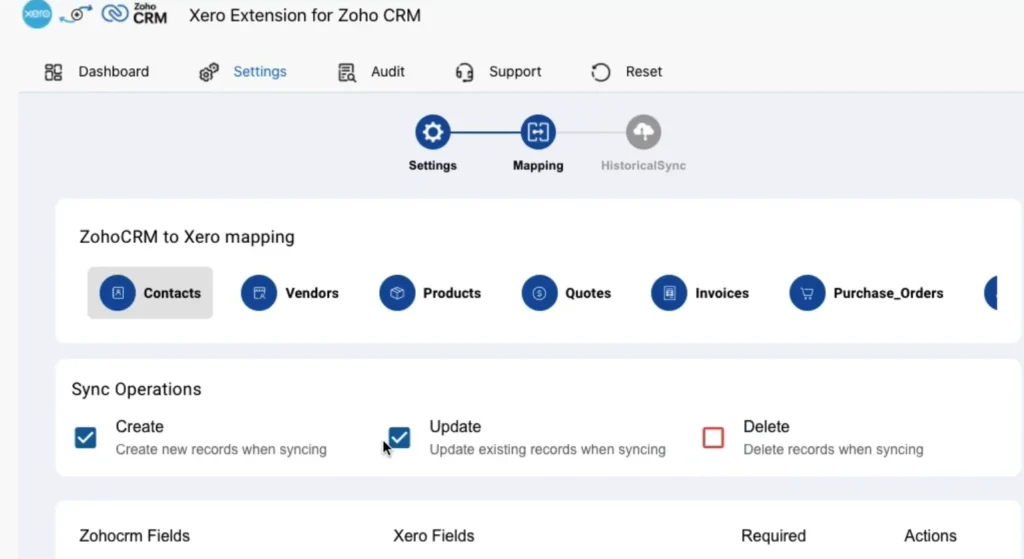
Field Mapping
Map fields once and let your data flow cleanly and accurately between both systems
- Select a module from the list
- View default field mappings (auto-applied based on field types)
- Customize mappings using dropdown menus
- Add custom field mappings as needed
- Save changes or reset to defaults
Best Practice: Review mappings before enabling sync to prevent data misalignment.
Xero Zoho crm Integration sync dashboard #
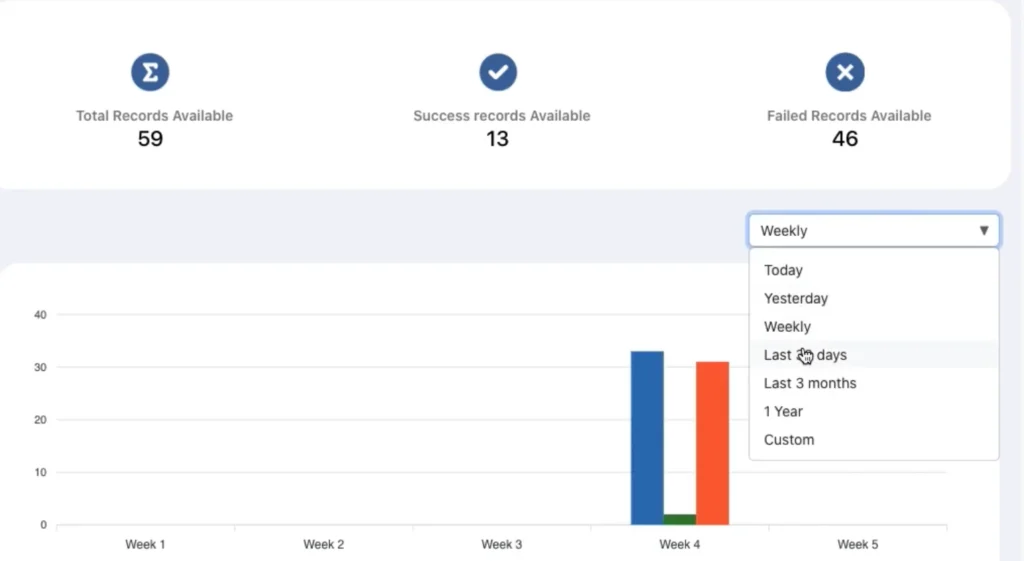
Monitor synchronization activity from the central dashboard
Sync Metrics
- Total records synced
- Successful syncs
- Failed records
Analytics
- Visual trend graphs showing sync performance over time
- Filter by date range for specific periods
Recent Activity
- Last five record syncs displayed
- Quick access to audit logs
Historical Data Sync #
Import records in bulk to align historical data:
Process
- Go to the Historical Sync section
- Select sync direction
- Choose a module to sync
- Set date range:
- Custom date range
- Last 7 days
- Last 30 days
- Last 90 days
- Review record count and estimated completion time
- Click Sync to queue records
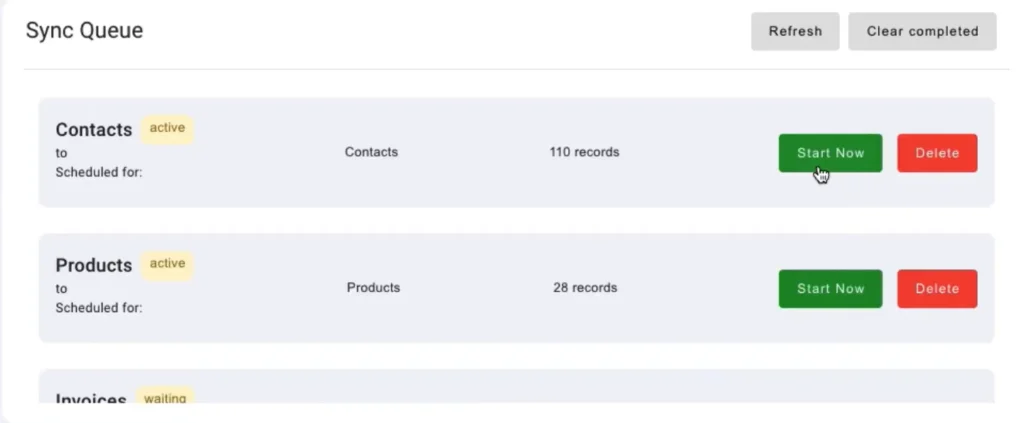
Queue Management
- Start Now – Begin syncing queued records immediately
- Delete – Remove specific modules from the queue
- Refresh – Update queue status
- Clear Completed – Remove successfully synced records
Limits: 500 records per operation (contact support for higher volumes)
Sync Audit Log #
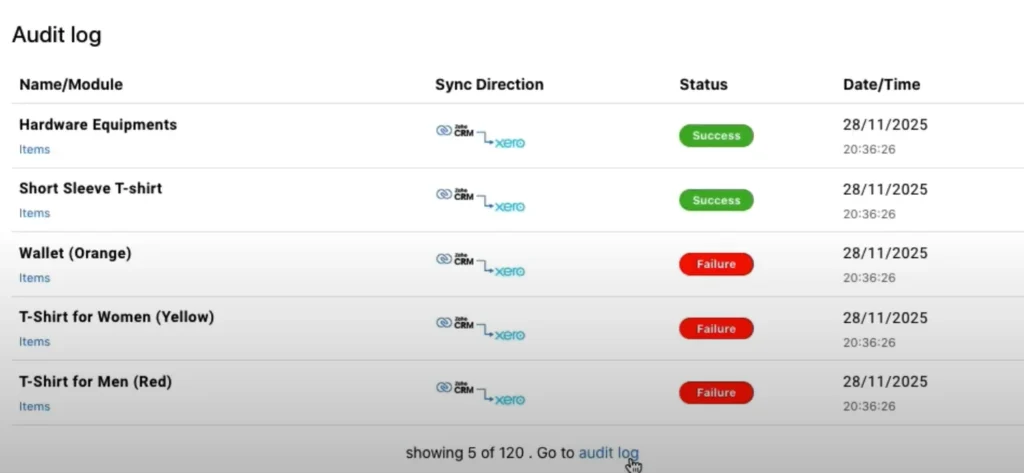
Track all synchronization activity with detailed logging
Features
- Sync Records – View direction, status, and record details for every sync operation
- Filtering – Search by module, record name, or date range
- Error Details – Access JSON error messages for failed syncs
- Resync – Retry failed records directly from the audit log
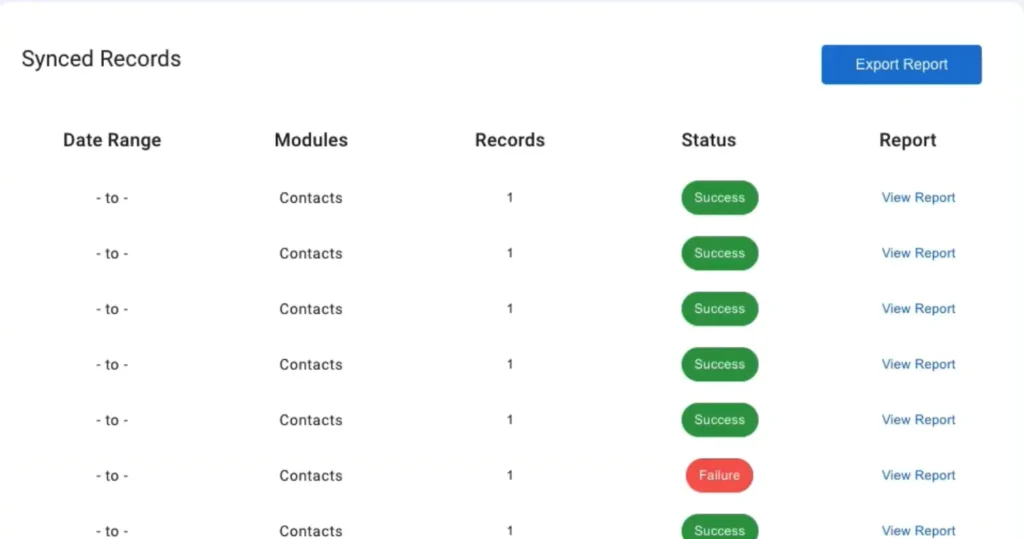
Export Options
- Download JSON files of failed records
- Export the complete audit log for reporting
The audit log provides complete transparency for troubleshooting and compliance.
Manual Sync to Xero #
Send Individual Records to Xero
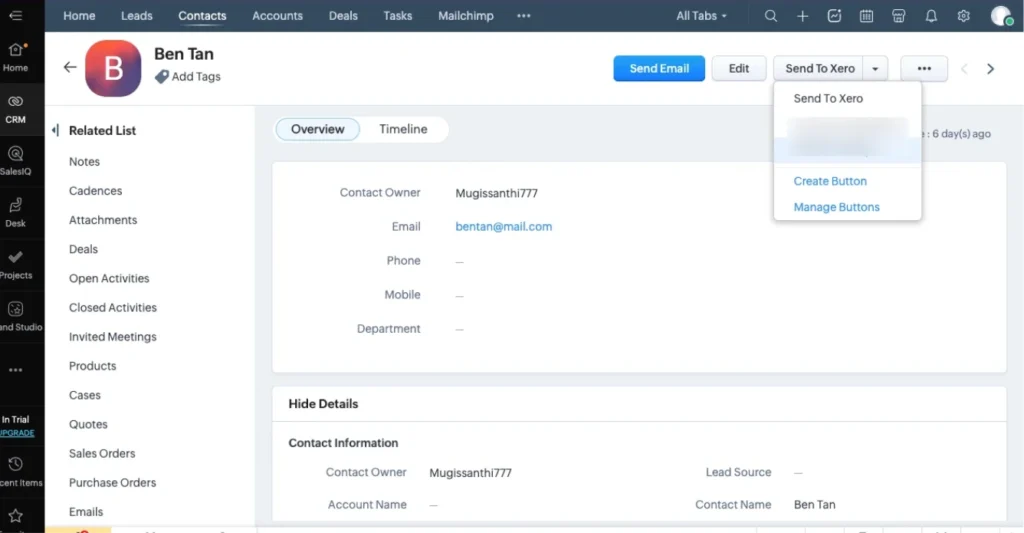
Sync specific contacts or invoices without waiting for the scheduled sync
For Contacts
- Open the contact record in Zoho CRM
- Click Copy to Xero icon (top right)
- Record syncs immediately to Xero
For Invoices
- Navigate to the invoice in the Finance module
- Click Send to Xero
- The invoice is created or updated in Xero
Note: The Finance module syncs invoices from Zoho Books by default, maintaining consistency across Zoho CRM, Xero, and Zoho Books.
Reset Xero Connection in Zoho CRM #
To connect a different Xero account
- Navigate to Settings → Reset tab
- Click Reset Connection
- Confirm the reset (this clears all synced record associations)
- Reconnect using the new Xero account credentials
Warning: Resetting erases sync history and record mappings. Back up your configuration before proceeding.
Troubleshooting #
Common Issues
Records Not Syncing
- Check sync direction settings
- Verify the module is enabled for sync
- Review field mappings for required fields
- Check the audit log for error details
Duplicate Records Created
- Ensure conflict resolution is properly configured
- Verify matching rules are set correctly
- Check if records exist in both platforms before sync
Failed Syncs
- Review error messages in the audit log
- Verify data meets both platforms’ validation rules
- Check for missing required fields
- Ensure proper permissions in both systems
Support and Assistance
If you need any customization in the Xero Zoho CRM Integration, don’t miss to reach out to us [email protected]
1. How much does the Xero Zoho CRM Integration cost?
The integration is available through a marketplace subscription. A 10-day free trial is included.
2. Can I sync only specific records between Zoho CRM and Xero?
Yes. You can control which records are synchronized by enabling specific modules in the integration settings. Individual contacts and invoices can be synced manually. Historical Data Sync also allows you to limit records by module and date range.
3. What happens when the same record is edited on both platforms?
When the same record is updated in both Zoho CRM and Xero, the conflict resolution setting determines which update takes precedence. You can configure priority for either platform in the integration settings.
4. How quickly do changes sync between Zoho CRM and Xero?
Changes are synchronized automatically at configurable intervals between 1 and 5 minutes. Manual sync actions, such as Send to Xero, update records immediately.
5. Does the integration support multiple Xero organizations?
Yes. Multiple Xero organizations can be connected during setup. To switch to a different organization later, use the Reset Xero Connection option.
6. Are data transfers between Zoho CRM and Xero secure?
Yes. All data transfers use secure, encrypted API connections. The integration uses OAuth 2.0 authentication, and account credentials are not shared or stored.
Best Practices #
Before Enabling Sync
- Back up data in both platforms
- Review and customize field mappings
- Test with a small dataset first
- Document your conflict resolution rules
Ongoing Maintenance
- Monitor the dashboard weekly for sync health
- Review audit logs when errors occur
- Update field mappings when adding custom fields
- Keep both platform versions current
For Optimal Performance
Archive old records before historical sync
Use bidirectional sync for real-time accuracy
Set sync frequency based on data volume
Enable only necessary modules