
The Zoho Mailchimp Extension by xapplets automates data sync between Zoho CRM and Mailchimp every 1-10 minutes using OAuth 2.0. It handles 500 records per batch, includes bidirectional sync with conflict resolution, and syncs contacts, leads, campaigns, and subscriber activity without manual CSV exports.
Best for teams using Zoho CRM as their primary customer database while running email campaigns in Mailchimp. Ideal for sales, marketing, and compliance teams that need real-time sync, audit visibility, and GDPR-safe opt-out handling.
The Mailchimp Extension for Zoho CRM automates secure data sync between Zoho CRM and Mailchimp.
Overview of Mailchimp Extension for Zoho CRM #
This guide explains how the Mailchimp Extension for Zoho CRM enables real-time contact and campaign sync.
- Sync contacts, leads, audiences, and campaign activity every 1, 5, or 10 minutes
- Configure one-way or bidirectional sync with conflict resolution
- Map standard and custom Zoho CRM fields to Mailchimp merge tags
- Import historical data in batches of up to 500 records
- Monitor sync health using audit logs, JSON errors, and re-sync tools
- Maintain GDPR-compliant email opt-outs across Zoho CRM and Mailchimp
How to Install Zoho Mailchimp Extension #
You can complete the installation and initial connection in under 10 minutes if you have admin access to both Zoho CRM and Mailchimp.
What You Need
- Zoho CRM account (any plan)
- Mailchimp account (Free tier works)
- Before installing the Mailchimp Extension for Zoho CRM, ensure admin access to both platforms.
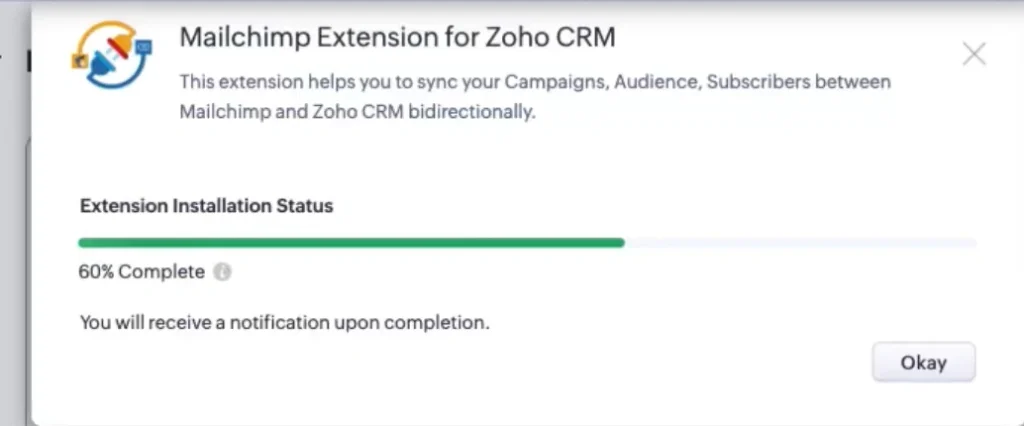
Step 1: Install from Marketplace
- Zoho CRM → Marketplace (top menu)
- Search: Mailchimp Extension xapplets
- Choose plan: 10-day free trial or paid subscription
- Accept terms → Click Continue
- Grant permissions (Contacts, Leads, Accounts access)
- Click Authorize
Step 2: Set User Access
Choose who sees Mailchimp modules,
- Admins only: Recommended during setup
- All users: Sales sees campaign engagement
- Selected profiles: Marketing + Sales roles only. Click Confirm.
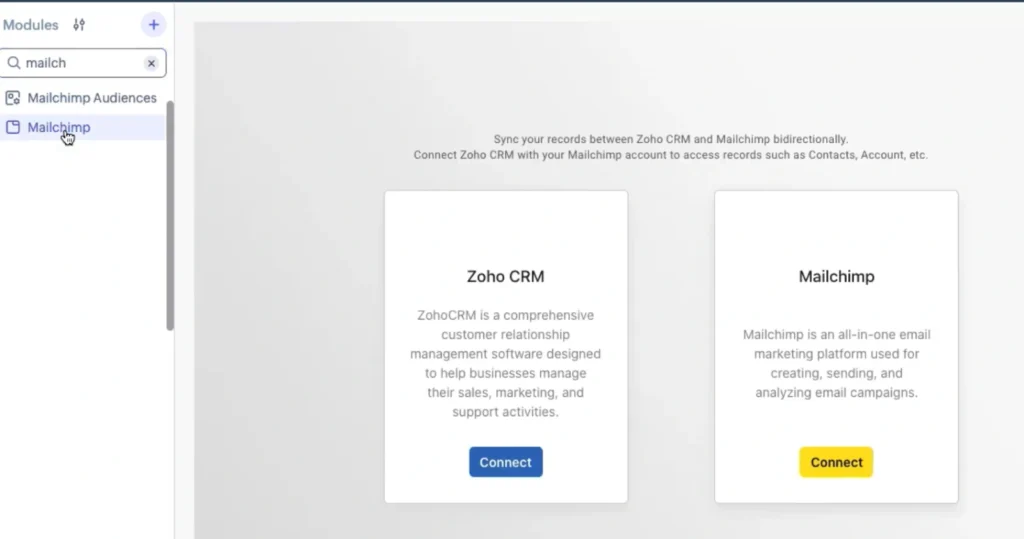
Two new modules appear: Mailchimp and Mailchimp Audience.
Step 3: Connect Both Platforms
Connect Zoho CRM
- Mailchimp module → Settings → Click Connect Zoho
- Click Accept
- Green checkmark = connected
Connect Mailchimp
- Same Settings tab → Click Connect Mailchimp
- Log in to Mailchimp in a pop-up
- Review permissions → Click Allow
- “Connected” badge appears
How Do I Set Sync Direction Between Zoho CRM and Mailchimp? #
Sync direction controls where data changes originate and which platform takes priority during updates.
1. Sync Direction (Choose One)
The Mailchimp Extension for Zoho CRM supports one-way and bidirectional sync options.
Path: Settings → Sync Direction
Option A: Zoho CRM → Mailchimp
- CRM updates push to Mailchimp
- Use when: CRM is your data source
Option B: Mailchimp → Zoho CRM
- Mailchimp updates push to CRM
- Use when: You collect signups via Mailchimp forms
Option C: Bidirectional
- Both platforms stay synced
- Requires conflict resolution (see below)
2. Conflict Resolution (Bidirectional Mode)
The problem: Contact email changes in CRM at 10:00 AM. Same contact unsubscribes in Mailchimp at 10:05 AM. Sync runs at 10:10 AM. Which wins?
Recommended setting: Use Mailchimp Priority for subscription status to avoid accidentally re-subscribing opted-out contacts.
Zoho CRM Priority: CRM data overwrites Mailchimp (email updates, but unsubscribe ignored) Mailchimp Priority: Mailchimp data overwrites CRM (unsubscribe syncs, email stays old)
3. Sync Frequency (CRON Scheduler)
Every 10 minutes (default): Best for small teams running low-volume or periodic campaigns.
Every 5 minutes: Recommended for active sales and marketing teams running frequent campaigns.
Every 1 minute: Designed for enterprise use cases requiring near real-time updates.
Higher frequency uses more API credits. Check Setup → API Usage.
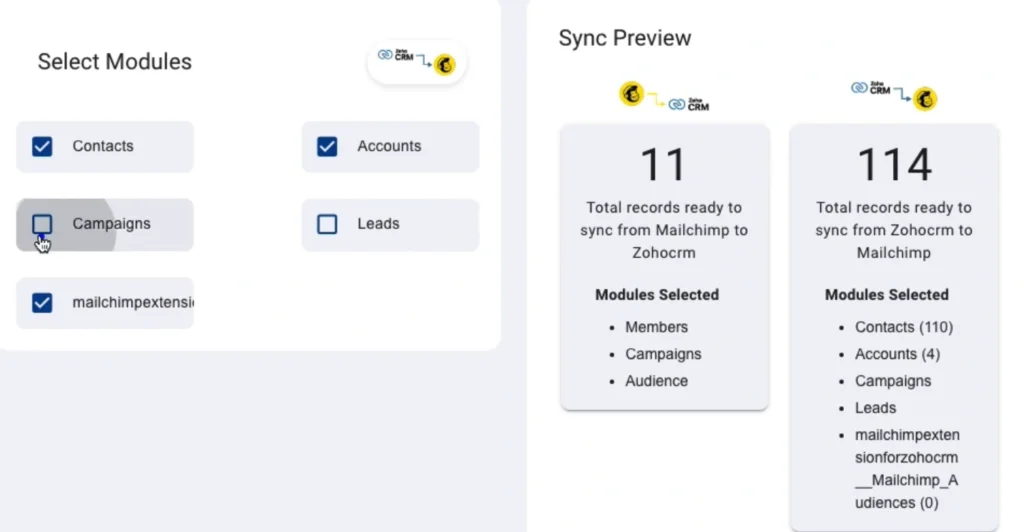
4. Module Selection
Lists: Syncs subscriber data, segments, groups
Campaigns: Syncs opens, clicks, bounces, creates CRM activity records
Enable both for full visibility.
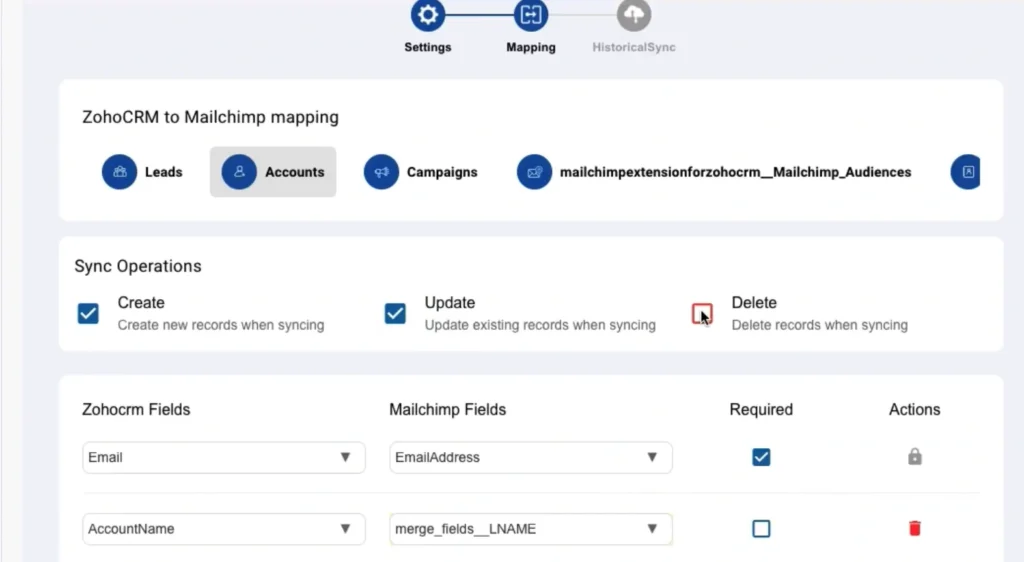
5. Field Mapping
The following fields are automatically mapped during setup and can be customized if necessary.
| Zoho field | Mailchimp Tag |
| First Name | FNAME |
| Last Name | LNAME |
| Phone | PHONE |
| Company | COMPANY |
| Email Opt Out | Subscription Status |
For custom fields
- Create a merge tag in Mailchimp first (Audience → Settings → Audience fields)
- In extension: Settings → Field Mapping → Add Custom Mapping
- Select Zoho field → Enter Mailchimp merge tag → Save
- Test with one record before bulk sync
Historical Sync in Mailchimp Extension for Zoho CRM #
Use Historical Sync to migrate data that existed in Zoho CRM before the extension’s installation.
Steps
- Historical Sync tab
- Select sync direction
- Choose module: Lists or Campaigns
- Set limit: Up to 500 records per batch
- Choose date range: Last 7/30/90 days or custom
- Click Sync → Records enter queue
- Click Start Now
Processing time: Approximately 1 minute per 100 records.
For 2,000 contacts: Run 4 separate syncs (500 each).
Queue options: Start Now, Refresh (check progress), Delete (remove from queue), Clear Completed (clean up finished items).
Dashboard Widgets of Zoho Mailchimp Extension
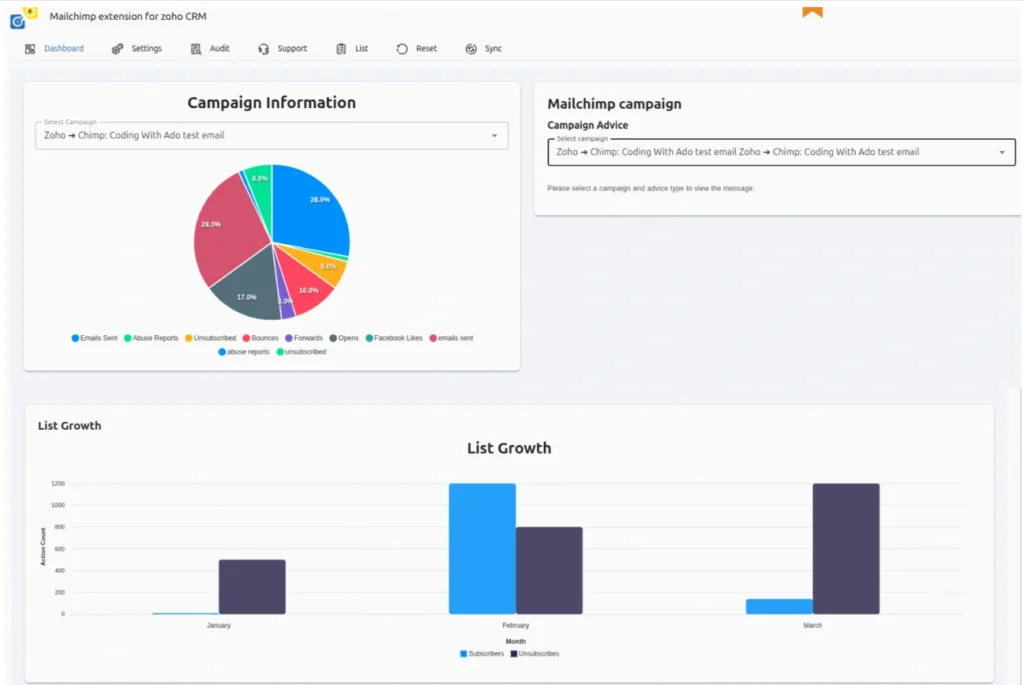
The dashboard provides real-time visibility into sync health, campaign performance, and audience growth.
Sync Health Monitor
- Total records synced
- Last sync timestamp
- Error rate (should be <5%)
- Green = healthy | Red = errors
Audience Growth Chart
- Subscriber count by date
- Shows campaign impact on list size
Campaign Performance
- Last 5 campaigns
- Open rate, click rate, bounce rate
- Click to see who engaged
Recent Activity Feed
- Last 20 sync operations
- Green for Success | Yellow for Partial | Red for Failed
- Click entry to view Audit Log
Quick Actions
- Get Lists from Mailchimp
- Run Historical Sync
- Trigger Manual Sync Now
Drag widgets to rearrange. Click ⚙ to hide unused ones.
Import Mailchimp Audiences into Zoho CRM #
First-time setup requires importing Mailchimp audiences.
Steps to Import
- Sync tab → Click Get Lists from Mailchimp
- The system displays all audiences with subscriber counts
- Check boxes for lists to sync
- Click Import
Lists now appear in the Mailchimp Audience module.
Syncing Campaigns
- Sync tab → Get Campaigns from Mailchimp
- Select campaigns to import
- Map fields (auto-mapped by default)
- Click Sync Campaign
Campaign opens, or clicks now appear in CRM activity logs.
Manage Mailchimp Audiences in Zoho CRM #
Bulk Subscribe
- Lists module → Select list
- Click Related Contacts or Related Leads
- Select contacts (max 100 per batch)
- Click Bulk Subscribe
Contacts are added to the Mailchimp audience immediately.
Bulk Unsubscribe
- Same list view → Click Bulk Unsubscribe icon
- Select subscribers to remove
- Click Confirm
Mailchimp status updates to “Unsubscribed.”
Instant Sync: Send to Chimp
For urgent updates outside the CRON schedule:
- Open any contact or lead record in CRM
- Click Send to Chimp (top action bar)
- Record syncs immediately
Use for: New high-priority leads, updated contact info before campaigns, and testing field mappings.
GDPR Opt-Out Sync in Zoho Mailchimp Extension #
This feature ensures compliance by automatically syncing unsubscribe actions between Zoho CRM and Mailchimp.
How It Works
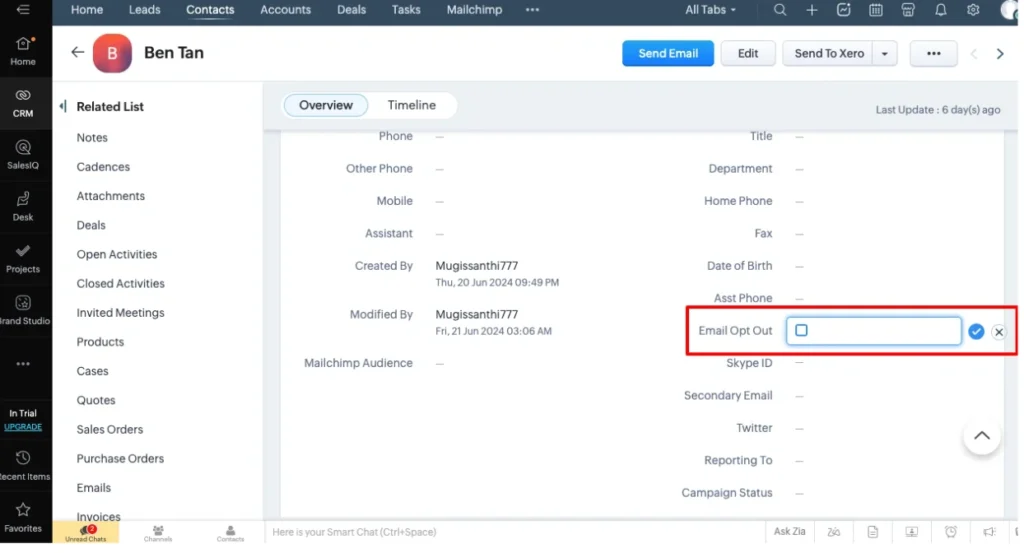
- Open contact record in Zoho CRM
- Enable the Email Opt Out field
- Save record
- Next CRON cycle syncs opt-out to Mailchimp
- Contact status changes to “Unsubscribed” in Mailchimp
The Mailchimp Extension for Zoho CRM ensures GDPR-compliant opt-out synchronization.
Reverse sync: If Mailchimp Priority is enabled, unsubscribes in Mailchimp update the Zoho CRM opt-out field.
Audit Log for Zoho CRM – Mailchimp Sync Errors #
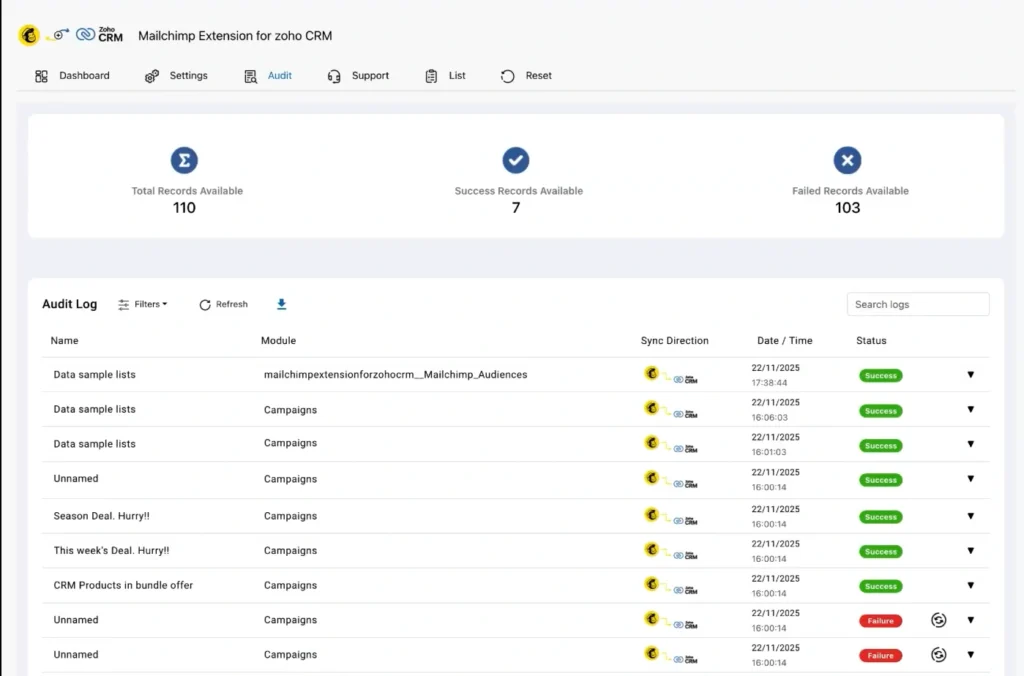
Audit logs help administrators identify, diagnose, and resolve sync failures quickly.
Reading the Log
Path: Audit Log tab
View:
- Timestamp (UTC)
- Direction (CRM → MC or MC → CRM)
- Record name
- Status: Green for Success | Red for Failed
Troubleshooting Failed Records
- Click failed record
- View JSON Error shows API response
- Example: {“status”:400, “detail”: “Invalid email format”}
- Fix the issue in the source platform
- Click Resync to retry immediately
Common error codes,
- 400: Invalid data format (check email syntax, phone format)
- 401: Authentication expired (reconnect Mailchimp)
- 403: API rate limit exceeded (reduce sync frequency)
- 404: Record not found (contact was deleted)
Export Options
- Download JSON: Raw error files for developers
- Export CSV: Full audit log for compliance reporting
Frequently Asked Questions (FAQ) #
1. Why aren’t contacts syncing between Zoho CRM and Mailchimp?
Check these 5 issues
Email format: Must match RFC 5322 standard (no spaces, valid domain)
Field mapping: Required Mailchimp merge tags must be mapped
API limits: Mailchimp caps at 10 requests/second (reduce sync frequency)
Duplicate emails: Mailchimp rejects duplicates in the same audience
Authentication: Reconnect Mailchimp if the last sync was >90 days ago
Diagnostic path: Audit Log → Filter “Failed” → Check JSON error → Fix source data → Resync.
2. How do I handle duplicate contacts between Zoho CRM modules?
Extension syncs each module (Contacts, Leads, Accounts) independently. If the same email exists in Contacts and Leads, with separate lists: Create two Mailchimp audiences (one for Contacts, one for Leads). With one list, Mailchimp uses the last-synced record. Add a merge tag such as “SOURCE” to track the origin.
Best practice: Use Zoho’s deduplication tools before enabling bidirectional sync.
3. Can I sync custom Zoho fields to Mailchimp?
Yes. Create a custom merge tag in Mailchimp first,
Mailchimp: Audience → Settings → Audience fields → Add field
xapplets: Settings → Field Mapping → Add Mapping → Select custom field → Enter merge tag
Save and test with a single record
Limitation: Only text, number, and date fields are supported. Picklists sync as text values.
4. What happens if I delete a record in Zoho CRM in the Mailchimp integration?
Default: Deletion doesn’t sync to Mailchimp (subscribers remain in the audience).
To sync deletions: Enable “Sync Deletions” in Settings (if your plan supports it). Deleted CRM records archive or unsubscribe from Mailchimp.
GDPR note: If contact requests data deletion, manually unsubscribe in Mailchimp or use the bulk unsubscribe workflow.
5. How do I sync Mailchimp campaign engagement data to Zoho CRM?
Automatic sync (Mailchimp → Zoho direction enabled)
Campaign opens/clicks sync to activity logs
Links clicked are logged as “Campaign Activity” under the contact record
Manual check: Mailchimp module → Select campaign → View “Related Contacts” tab for engagement stats.
6. Can I pause syncing in the Zoho CRM Mailchimp integration without disconnecting?
No built-in pause. Workarounds:
Temporary stop: Set CRON to 10 minutes and don’t trigger manual syncs
Module-level stop: Deselect modules in Settings → Module Selection → Save (syncing stops until re-enabled)
Full disconnect: Settings → Disconnect Mailchimp (requires re-authentication to resume)
The Mailchimp Extension for Zoho CRM handles duplicate contacts using email-based matching.
The Mailchimp Extension for Zoho CRM handles duplicate contacts using email-based matching.