
The Kit Extension for Zoho CRM is a robust integration tool that connects your Kit email marketing platform with Zoho CRM. This extension facilitates bidirectional synchronization of subscribers in Kit with leads, contacts, and accounts in Zoho CRM. Enjoy seamless customer relationship management and updated records across both platforms.
Installation and Setup #
Install the Extension
Navigate to the Zoho Marketplace and search for the Kit Extension for Zoho CRM.
You can purchase the extension directly by clicking on the Buy Now option or get a Free Trial for a 10-day trial period.
Follow the on-screen instructions and click on Install to complete the installation.
After installation, access the extension by navigating to the modules tab and selecting Kit Extension
Connect Zoho CRM
Click Connect under the Zoho tab to allow Zoho CRM to access the integration.
Accept the terms and conditions to complete the connection process.
Connect Kit
Click on the Connect corresponding to the Kit section. And then login to your Kit account.
1. Dashboard #
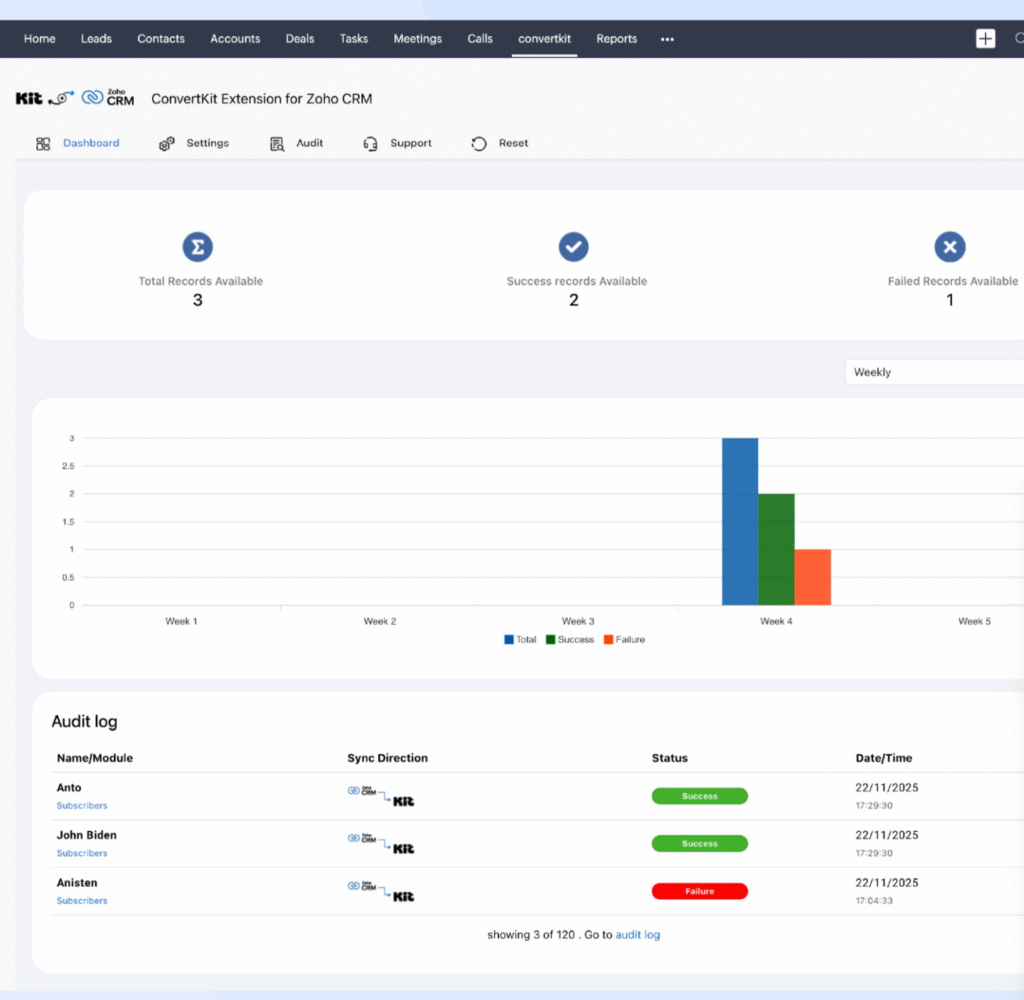
The Dashboard serves as the central command center for monitoring all synchronization activities between Zoho CRM and Kit.
Sync Overview
Displays:
- Total number of records synced
- Number of successfully synced records
- Number of failed records
Visual Analytics
A dynamic line graph showcases sync trends over time, helping you evaluate the health and activity of your Kit–Zoho CRM connection.
Date Range Filters
Filter sync statistics by:
- Custom date range
- Last 7 days
- Last 30 days
- Last 90 days
Recent Record Syncs
Quickly view the five most recent synced records.
Audit Log Access
Click Audit Log to jump directly to detailed logs for troubleshooting sync issues.
2. Settings #
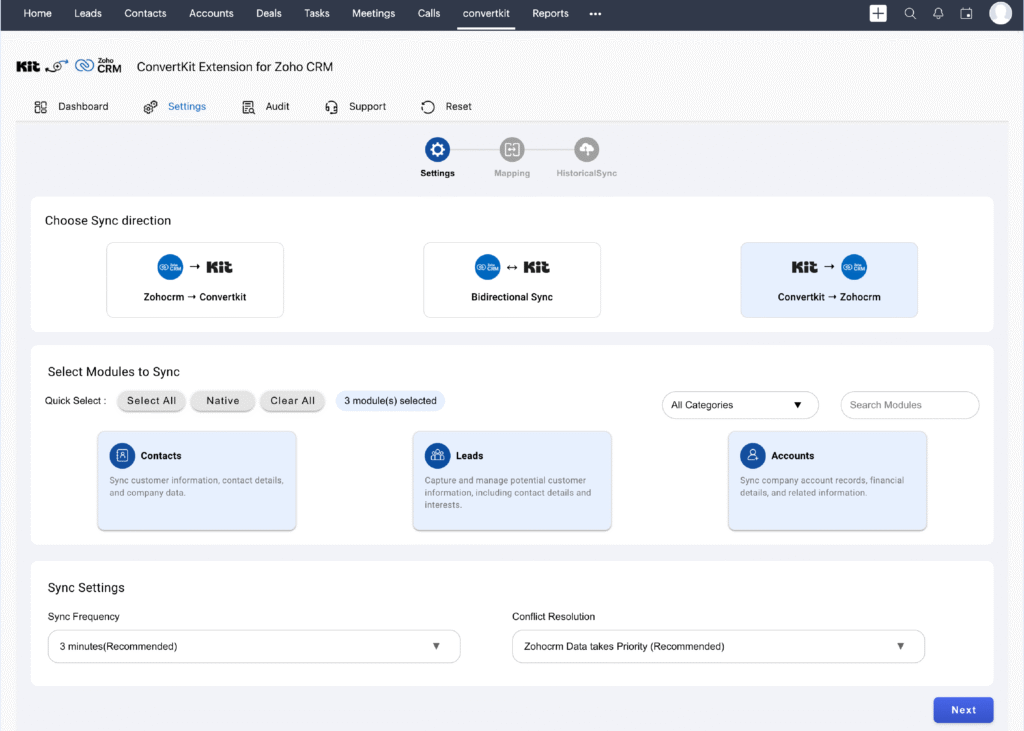
The Settings section allows you to configure synchronization rules, module preferences, mapping, and behavior between Zoho CRM and Kit.
2.1 Sync Direction
Choose how data flows between systems:
- Zoho CRM → Kit
Sync newly created or updated Leads/Contacts/Accounts to Kit. - Kit → Zoho CRM
Import Kit subscribers as Zoho CRM Leads/Contacts/Accounts. - Bidirectional Sync
Enables two-way updates across both platforms.
2.2 Module Selection
Select the CRM modules you want to sync with Kit:
- Leads
- Contacts
- Accounts
You can enable one or multiple modules depending on your workflow.
2.3 Sync Frequency (CRON Scheduler)
Configure how often sync should run automatically:
- Default: Every 10 minutes
- Optional: Every 5 minutes or 1 minute (contact support to enable 1-minute interval)
This ensures that CRM and Kit data stays continuously up-to-date.
2.4 Conflict Resolution
Specify which system should take precedence in case of conflicting updates:
- Zoho CRM Priority – CRM data overwrites Kit records
- Kit Priority – Kit subscriber data overwrites CRM records
This keeps your customer data consistent and aligned with your business logic.
2.5 Field Mapping
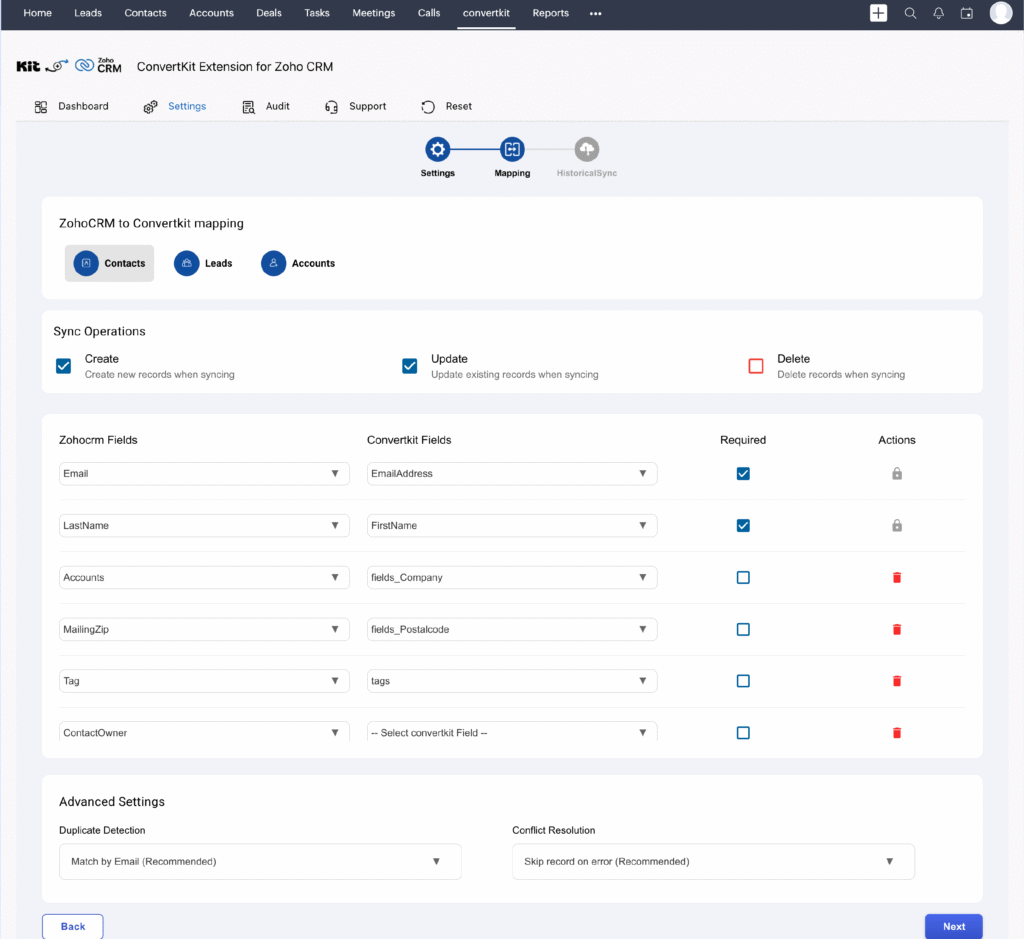
Manage how Zoho CRM fields are mapped to Kit fields.
Features:
- Displays all enabled modules (Leads, Contacts, Accounts) with default field mappings
- Default mapping is auto-applied for standard fields
- Flexible to edit default mapping, or add custom field mapping
. - Save the mapping template as a draft, or you can reset to the default mapping at any time
Accurate mapping ensures reliable and error-free synchronization between Kit and Zoho CRM.
3. Historical Sync #
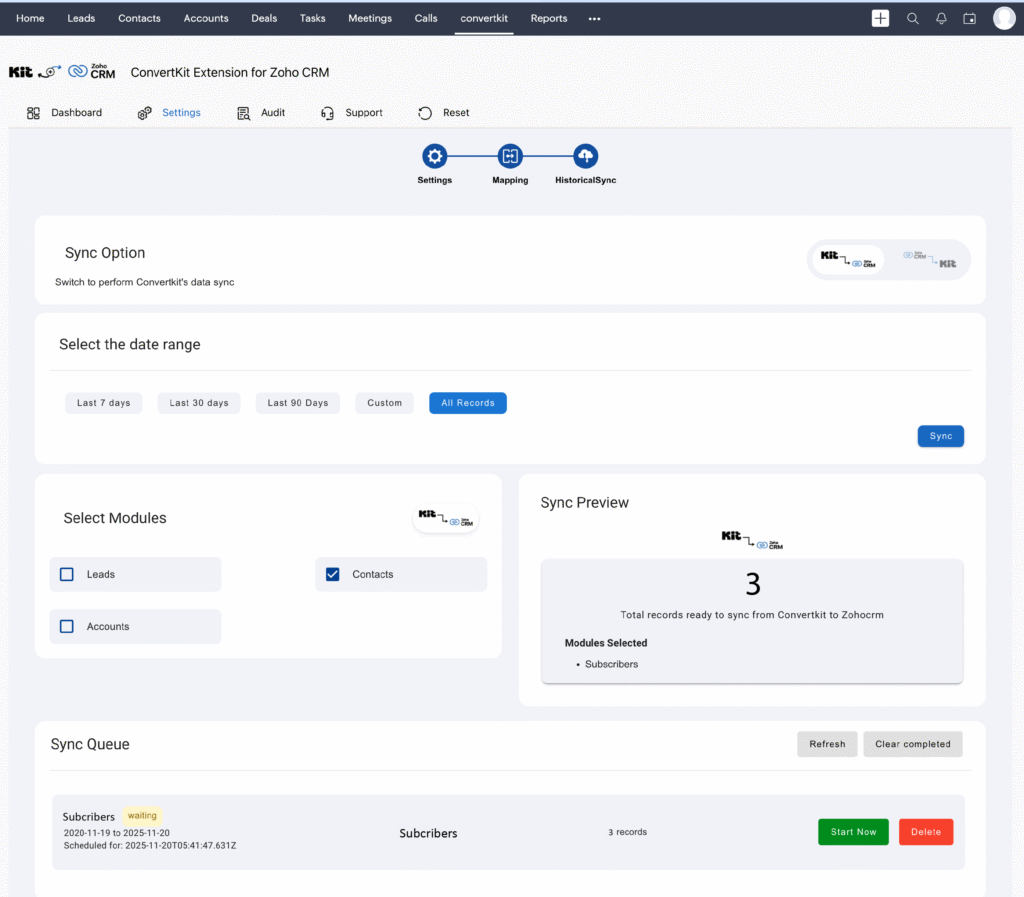
The Historical Sync feature allows bulk syncing of legacy data between Zoho CRM and Kit.
Steps:
- Choose the sync direction. Only the selected direction in the configuration settings will be enabled.
- Choose the module you need to sync. On selecting each module, the number of records in that module will be displayed on the right widget.
- Review the number of records and estimated sync time.
- Bulk sync up to 500 records per operation (contact support for higher limits).
- Select a date range:
- Custom
- Last 7 Days
- Last 30 Days
- Last 90 Days
- Custom
- Click Sync to add records to the queue.
Queue Management Tools
- Start Now – Begin syncing immediately
- Delete – Remove modules from the queue
- Refresh – Refresh to show the latest queue status
- Clear Completed – Remove successful syncs
Historical Sync ensures all pre-existing data stays consistent without affecting ongoing sync operations.
With the historical Sync option, you can sync upto 500 records. You can contact support to sync more than 500 records.
Note: Historical sync option is a one-time process. With or without reaching the limit, you cannot able to sync bulk records with historical sync.
4. Audit Log #
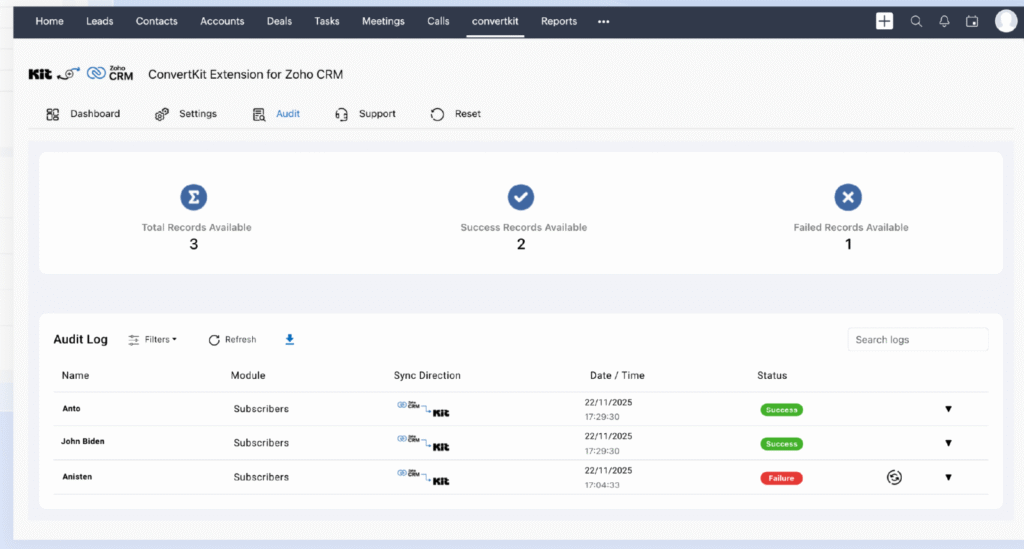
The Audit Log provides full visibility into all sync operations between Zoho CRM and Kit.
Key Features
- Shows sync direction, success/failure status, and record details
- Filter by:
- Module (Leads, Contacts, Accounts)
- Record name
- Date range
- Module (Leads, Contacts, Accounts)
- Resync failed records
- View JSON error messages for troubleshooting
- Export logs for reporting or compliance
- Download failed record details
This ensures complete traceability and assists in resolving sync issues effectively.
5. Syncing Subscribers #
The integration supports multiple ways of syncing subscribers:
5.1 On-Save Instant Sync
When you create new Leads, Contacts, or Accounts in Zoho CRM, they are instantly pushed to Kit as Subscribers
5.2 Manual Contact Sync
To sync an individual record:
- Open the record detail page in Zoho CRM
- Click Send to Kit
- The selected record syncs immediately to Kit
6. Reset Connection #
If you need to reconnect or switch accounts:
- Navigate to Settings
- Select Reauthorize under Kit or Zoho CRM
- Reconnect using your preferred Kit account
- Follow the initial setup steps again
This allows you to easily switch Kit accounts or refresh your integration configuration.
Use Cases #
1. Automatic Lead & Subscriber Sync
When someone joins your Kit list:
- A new record (Lead/Contact/Account) can be automatically created in Zoho CRM
- Existing CRM records are updated with subscriber info
2. Engagement Tracking inside CRM
View Kit subscriber data in Zoho CRM, including:
- Tags
- List membership
- Engagement metadata (opens, clicks, etc., if supported)
3. Automated Lead Nurturing
As CRM records sync to Kit, you can automatically:
- Enroll them in nurture sequences
- Apply tags based on lifecycle stages
- Align marketing and sales pipelines
4. Unified Customer View
By combining CRM and Kit data, your team gains:
More personalized marketing and sales
A clear customer journey overview
Better targeting and forecasting
If you need any assistance feel free to reach out to us at [email protected]