Automate Accounting, Invoicing, and Client Sync from Zoho CRM to FreshBooks #
The FreshBooks Integration for Zoho CRM enables businesses to connect sales operations with accounting workflows seamlessly. By syncing CRM data directly into FreshBooks, the integration eliminates manual data entry, minimizes billing errors, and ensures accurate financial records.
FreshBooks is a cloud-based accounting platform built for small and mid-sized businesses, freelancers, consultants, and solo entrepreneurs. When integrated with Zoho CRM, your sales data becomes automatically accounting-ready, enabling sales and finance teams to work in sync without duplication.
Integration Type: One-way (Zoho CRM → FreshBooks)
Best For: SMBs, freelancers, agencies
Synced Data: Contacts, Products, Quotes, Invoices
Automation Level: Real-time + Manual + Bulk
Synced Data Overview #
| Zoho CRM Module | FreshBooks Module | Business Purpose |
| Contacts | Clients | Keeps customer billing information aligned |
| Products | Items | Maintains consistent pricing |
| Quotes | Estimates | Converts sales proposals into estimates |
| Invoices | Invoices | Automates customer billing |
Sales teams continue working in Zoho CRM, while finance teams rely on FreshBooks for invoicing and accounting.
Overview – FreshBooks Integration for Zoho CRM #
- One-Way Accounting Automation (Zoho CRM → FreshBooks)
Automatically sync sales and billing data from Zoho CRM to FreshBooks, keeping Zoho CRM as the single source of truth. - Automated Invoicing and Estimates from CRM
Convert Zoho CRM quotes into FreshBooks estimates and invoices, reducing manual accounting effort and billing errors. - Flexible Sync Options for Different Workflows
Support real-time on-save sync, manual one-click sync, and historical bulk data migration based on business needs. - Accurate Client and Product Synchronization
Sync contacts as clients and products as items to maintain consistent customer details and pricing across systems. - Default and Custom Field Mapping Support
Map standard and custom Zoho CRM fields to FreshBooks fields using drag-and-drop mapping for accounting-ready data. - Audit Logs and Sync Monitoring
Monitor synchronization activity, track success or failure status, and troubleshoot issues using detailed audit logs.
How to Install FreshBooks Integration for Zoho CRM #
Step 1: Install from Zoho Marketplace
- Log in to your Zoho CRM account
- Navigate to Settings → Marketplace → All
- Search for FreshBooks Integration for Zoho CRM
- Click Install
- Choose a Free Trial or Monthly / Yearly subscription
- Select user profiles and accept the terms
Step 2: Connect Zoho CRM with FreshBooks
- After installation, click the three-dot menu (⋮) in Zoho CRM
- Select FreshBooks
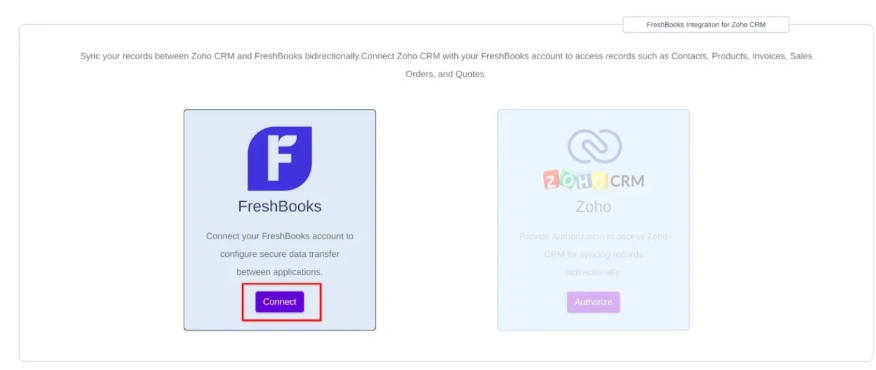
- Click Connect
- Log in to your FreshBooks account
- Authorize access and accept permissions
Once connected, you will be redirected to the Integration Home Page, confirming successful authorization.
Configure Zoho CRM FreshBooks Integration Sync Settings #
The integration offers flexible configuration options to match different business workflows.
Supported Zoho CRM Modules
- Contacts
- Products
- Quotes
- Invoices
Available Actions
- Create
- Update
- Delete
How Configuration Works
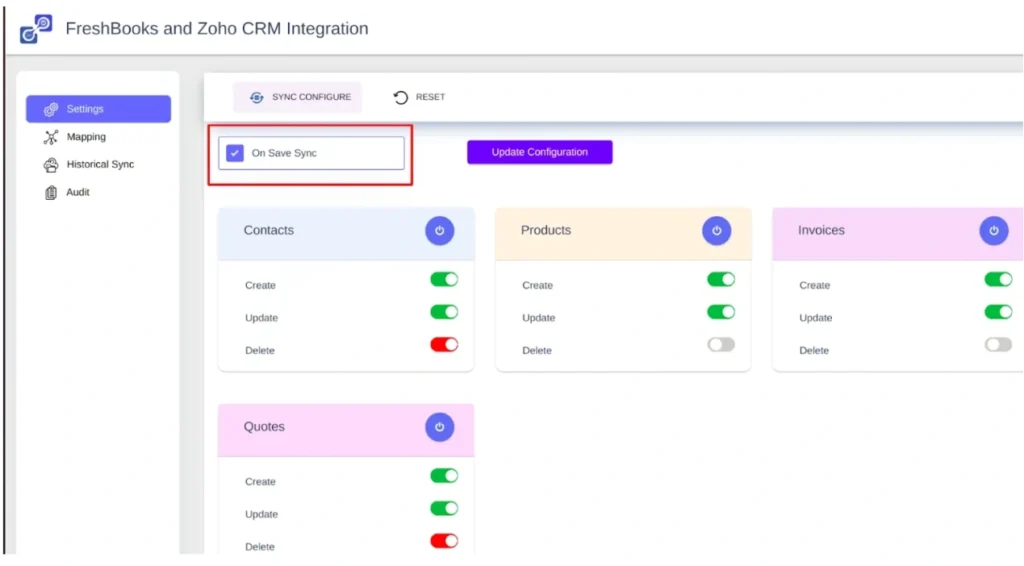
- Navigate to Settings → Zoho CRM Configuration
- Enable or disable actions for each module
- Click Update Configuration
Example
When Create is enabled for the Products module, every new product created in Zoho CRM is automatically synced as an item in FreshBooks.
Field Mapping Between Zoho CRM and FreshBooks (Default and Custom Fields) #
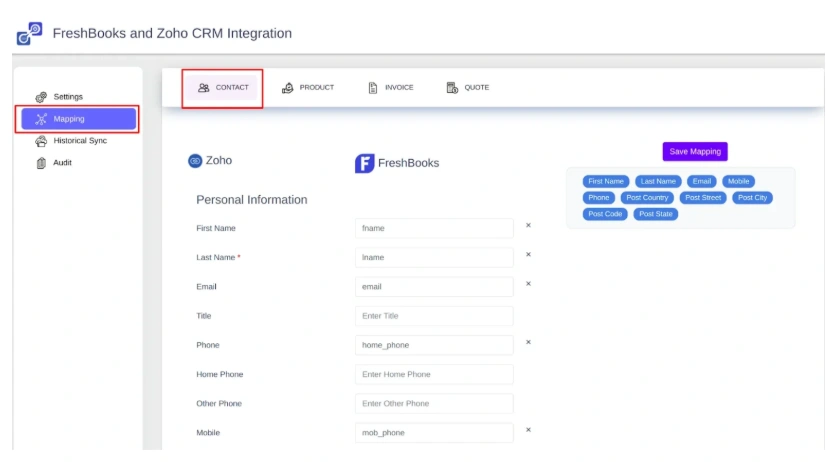
The extension includes predefined default field mappings for quick setup.
You can also
- Map custom Zoho CRM fields
- Use drag-and-drop field mapping
- Save mappings for consistent data flow
This ensures CRM data aligns correctly with FreshBooks accounting fields.
Record Synchronization Options Between Zoho CRM and FreshBooks #
The integration supports unidirectional sync from Zoho CRM to FreshBooks using three methods.
1. On Save Sync (Real-Time Automation)
Automatically sync records when they are created, updated, or deleted in Zoho CRM.
How to enable
- Navigate to Settings
- Enable On Save Sync
- Click Update Configuration
Best suited for businesses requiring instant client and invoice updates.
2. Copy to FreshBooks (Manual One-Click Sync)
Sync individual records on demand.
Steps
- Open a Zoho CRM record
- Click Copy to FreshBooks
- The record is instantly synced
Ideal for selective or one-off syncing.
3. Historical Sync (Bulk Data Migration)
Used to migrate existing Zoho CRM records into FreshBooks.
Steps
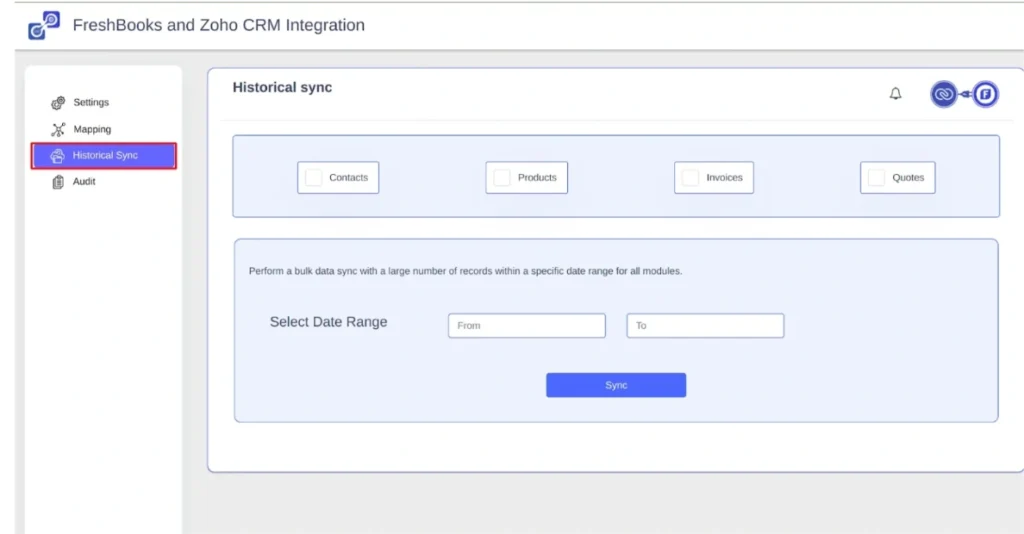
- Open the Historical Sync tab
- Select modules and date range
- Click Sync
Recommended during initial setup or for bulk data transfers.
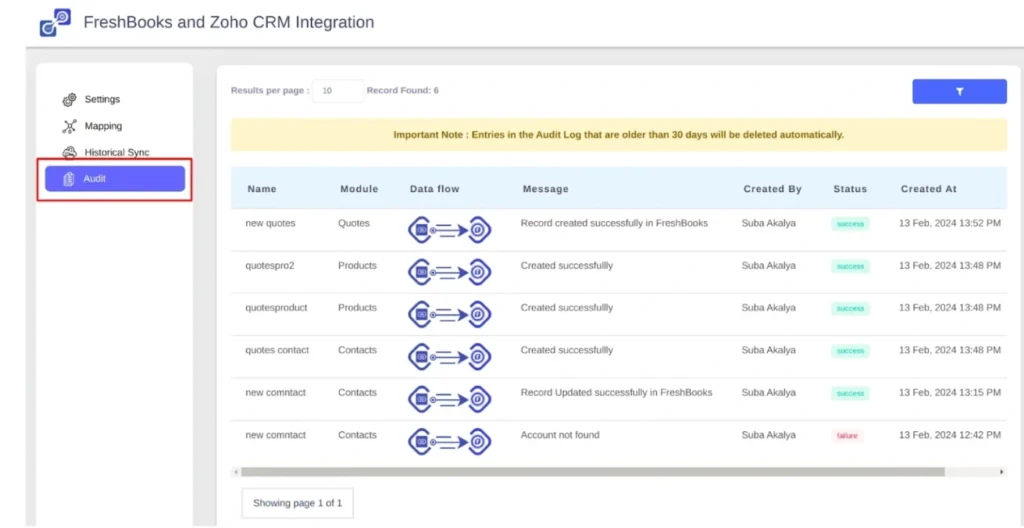
Audit Logs and Sync Monitoring FreshBooks Integration for Zoho CRM #
Audit Logs provide complete visibility into all synchronization activities.
You can
- Track sync status (Success / Failed)
- Filter records by date range
- Search by module, record name, or data flow
- Identify and resolve errors efficiently
Reset FreshBooks Connection in Zoho CRM Integration #
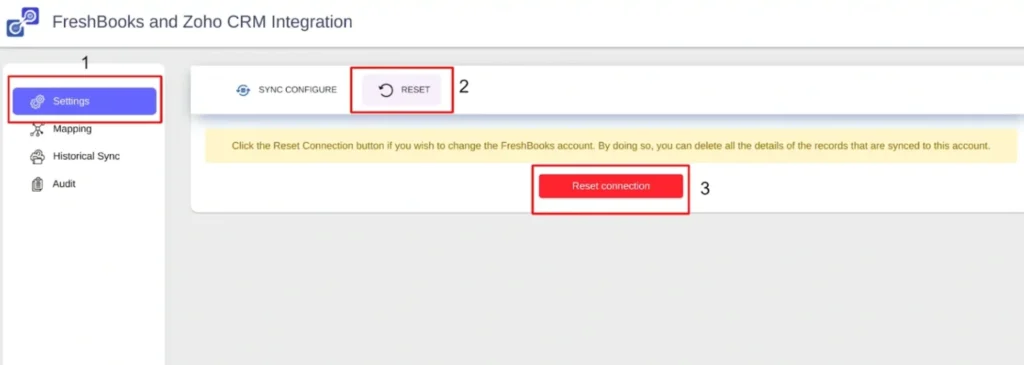
To reconnect or switch FreshBooks accounts
- Navigate to Settings → Reset
- Click Reset Connection
- Confirm the action
All configurations will be cleared, allowing a fresh authorization.
Frequently Asked Questions #
1. Is the FreshBooks integration for Zoho CRM two-way or one-way?
The Zoho CRM FreshBooks integration is a one-way (uni-directional) sync, not a two-way integration. All data flows only from Zoho CRM to FreshBooks.
Zoho CRM remains the master data source, meaning contacts, products, quotes, and invoices must be created or updated in Zoho CRM first. Once saved, these records are automatically synced to FreshBooks based on your configuration settings.
This one-way sync design prevents data conflicts, avoids duplicate records, and ensures accounting accuracy by keeping sales and customer data centralized in Zoho CRM, while FreshBooks focuses solely on invoicing, payments, and financial reporting.
2. Can I sync existing Zoho CRM data with FreshBooks?
Yes. You can sync your existing Zoho CRM data to FreshBooks using the Historical Sync feature.
Historical Sync is designed for bulk data migration, allowing you to transfer previously created records, such as contacts, products, quotes, and invoices, from Zoho CRM into FreshBooks in one structured process.
This feature is especially useful when:
Setting up the integration for the first time
Migrating legacy CRM data to FreshBooks
Syncing large volumes of historical sales and billing records
You can choose specific modules and define a date range to control exactly which records are synced, ensuring a clean and accurate accounting setup.
3. Does deleting a record in Zoho CRM also delete it from FreshBooks?
Yes, but only if the Delete action is enabled in the integration’s configuration settings.
When the Delete sync option is turned on, deleting a record in Zoho CRM will automatically remove the corresponding record from FreshBooks during synchronization.
If the Delete action is disabled, the record will be deleted only in Zoho CRM and will remain in FreshBooks. This is often preferred for accounting and audit purposes, where historical financial data must be preserved.
4. Can custom fields be synced between Zoho CRM and FreshBooks?
Yes. The integration allows you to sync custom fields from Zoho CRM to FreshBooks using the built-in drag-and-drop field mapping tool.
You can map your custom fields created in Zoho CRM to the corresponding fields in FreshBooks, ensuring that additional business-specific data, such as tax IDs, payment terms, or internal reference fields, flows seamlessly into your accounting system.
Once mapped, these custom fields are automatically included in record synchronization based on your configured sync settings.
Support
Our support team helps with installation, configuration, field mapping, and troubleshooting to ensure your Zoho CRM FreshBooks integration runs smoothly and reliably.
For assistance, contact us at [email protected]