Zoho CRM integration is often where enterprise automation either succeeds or breaks down. A small misconfiguration in OAuth, incorrect field mapping, or overlooked API limits can disrupt data synchronization and impact sales, marketing, and operational workflows.
If you’re working with Zoho CRM in the context of enterprise automation, system integrations, or business process optimization, you’ve likely encountered common challenges-authentication errors, duplicate records, failed webhooks, or incomplete data sync between systems.
This complete Zoho CRM integration setup guide walks you through integrating Zoho CRM correctly using the REST API and OAuth 2.0 authentication. From architecture and configuration to deployment, monitoring, and troubleshooting, you’ll learn what works in real production environments, what to avoid, and how to verify that your integration is secure, stable, and scalable.
Architecture and Dependencies
Understanding the architecture behind Zoho CRM integration helps prevent common setup and deployment issues.
How Zoho CRM Integration Works
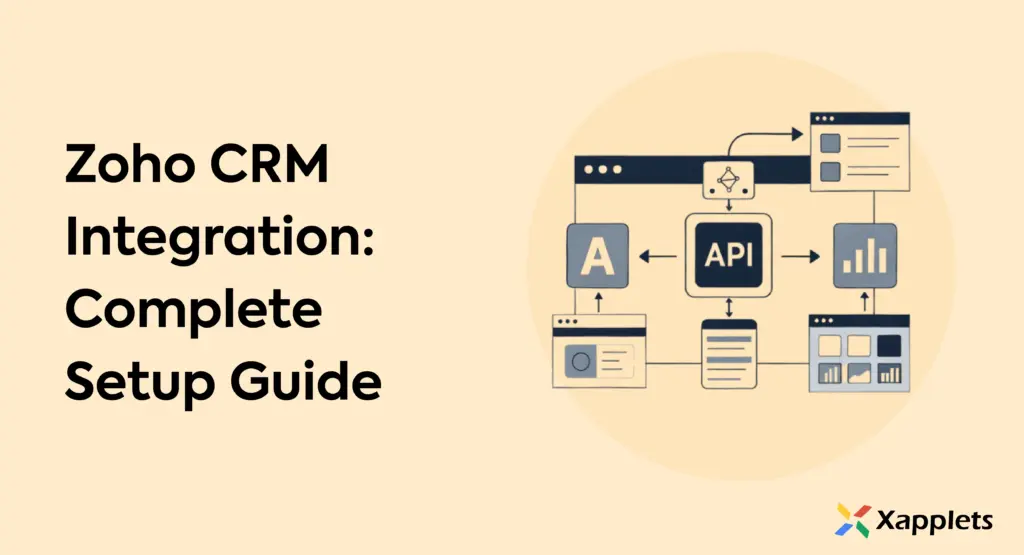
When you build a Zoho CRM integration, you’re typically working with four moving parts:
- Zoho CRM REST API for data access and synchronization
- OAuth 2.0 authentication for secure API access
- Middleware or backend application (Node.js, Python, PHP, or integration platforms like Zoho Flow or Zapier)
- External systems such as ERP software, marketing tools, or eCommerce platforms
For real-time updates, many integrations also use webhooks to reduce unnecessary API calls and improve performance.
Key Requirements Before Setup
Before starting your Zoho CRM integration, ensure you have:
- An active Zoho CRM account with API access enabled
- OAuth client credentials configured in the Zoho Developer Console
- Clearly defined data field mapping between systems
- Access to a sandbox or staging environment for testing
- Awareness of Zoho CRM API rate limit
Best Practices for a Stable Integration
To avoid production issues:
- Define your integration scope clearly.
- Choose the correct method (native integration, plugin, or custom API).
- Test changes in a staging environment first.
- Deploy changes incrementally.
- Monitor API logs and error responses.
If errors occur, revert to the last stable version and validate authentication tokens and API responses before proceeding.
Popular Zoho CRM Integrations
Zoho CRM integrates with a wide range of marketing, finance, e-commerce, and productivity tools. These integrations help automate workflows, eliminate manual data entry, and keep customer information synchronized across systems.
Here are some of the most commonly used Zoho CRM integrations:
Zoho CRM + Mailchimp
Sync contacts automatically and trigger email campaigns based on CRM activity. Ideal for businesses running segmented email marketing workflows.
Zoho CRM + QuickBooks Online
Generate invoices directly from closed deals and keep financial records aligned with sales activity.
Zoho CRM + Xero
Synchronize customer data and billing information for real-time financial tracking.
Zoho CRM + Trello
Automatically create project tasks or boards when deals move to specific pipeline stages.
Zoho CRM + MailerLite
Trigger drip campaigns when new leads enter the CRM or when deal status changes.
Zoho CRM + Shopify
Sync orders, customers, and purchase history for eCommerce automation and sales tracking.
Zoho CRM + Zoho Books
Connect sales and accounting workflows within the Zoho ecosystem for streamlined operations.
Zoho CRM + Google Sheets
Export CRM data for reporting dashboards, forecasting, or custom analytics.
Zoho CRM + Brevo
Trigger transactional and marketing emails directly from CRM events.
Zoho CRM + Zoho Corporation Applications
Enable cross-app automation across Zoho tools such as Zoho Campaigns, Zoho Desk, and Zoho Projects.
Why These Integrations Matter
Connecting Zoho CRM to your existing tools:
- Reduces manual data entry
- Prevents duplicate records
- Automates sales and marketing workflows
- Improves financial visibility
- Enhances customer lifecycle tracking
If you’re evaluating Zoho CRM integration options, start with the tools your team already uses and determine whether a native integration, API-based setup, or middleware solution is the right approach.
Zoho CRM API Implementation: Authentication, Endpoints, and Webhooks
Whether you’re connecting a website, ERP system, marketing automation tool, or custom application, following the correct implementation process prevents data errors and integration failures.
Step 1: Define the Integration Objective
Before starting your Zoho CRM setup, clearly define what you want the integration to achieve. For example:
- Automatically send website leads to Zoho CRM
- Sync contacts between Zoho CRM and an email marketing platform
- Connect Zoho CRM with an ERP or accounting system
- Enable real-time order updates from an eCommerce store
Defining the goal helps determine whether you need a native integration, a third-party connector, or a custom Zoho CRM API integration.
Step 2: Choose the Right Integration Method
There are several ways to integrate Zoho CRM:
- Native integrations built into Zoho CRM
- Integration platforms like Zoho Flow, Zapier, or Make
- Custom Zoho CRM REST API integration
- Middleware solutions for enterprise systems
If you require advanced workflows, automation logic, or real-time data sync, API-based integration provides the most flexibility.
Step 3: Configure Zoho CRM API and OAuth Authentication
Zoho CRM uses OAuth 2.0 for secure API access. To set it up:
- Register your application in the Zoho Developer Console
- Generate your Client ID and Client Secret
- Obtain access and refresh tokens
- Securely store credentials on your server
Improper token management is one of the most common causes of Zoho CRM integration failures.
Step 4: Map Data Fields Between Systems
Accurate field mapping ensures clean data synchronization.
Before going live:
- Identify modules (Leads, Contacts, Deals, Accounts)
- Map corresponding fields between systems
- Standardize data formats (dates, currencies, phone numbers)
- Define validation and duplicate handling rules
Clear mapping prevents data conflicts and duplicate records.
Step 5: Test in a Sandbox or Staging Environment
Never deploy a Zoho CRM integration directly to production.
Instead:
- Test API calls and responses
- Validate data sync accuracy
- Check rate limits and performance
- Simulate edge cases
Testing ensures your CRM integration performs reliably under real-world conditions.
Step 6: Deploy and Monitor
After successful testing:
- Move to production
- Monitor API logs regularly
- Track synchronization success rates
- Set alerts for authentication token expiration
Ongoing monitoring is critical for long-term integration stability.
Zoho CRM API Security and Performance Best Practices
Once your Zoho CRM integration is live, security and performance monitoring become critical. A poorly secured or unmonitored integration can lead to data loss, failed lead capture, or authentication errors.
Securing Your Zoho CRM API Integration
Zoho CRM integration relies on OAuth 2.0 and API credentials. To secure your setup:
- Store OAuth access and refresh tokens securely on the server
- Never expose API credentials in client-side code
- Restrict API access to production IP addresses where possible
- Enable role-based access control inside Zoho CRM
- Disable debug mode in production environments
If you are using Zoho CRM webhooks, validate incoming requests to ensure they originate from Zoho. This prevents unauthorized data injection.
Proper token handling and credential management are the most common failure points in Zoho CRM API integration. Securing them significantly reduces risk.
Monitoring Zoho CRM Integration Performance
Performance issues can affect data synchronization, lead creation, or checkout workflows.
After deployment, monitor:
- API response time
- Failed API requests
- OAuth token expiration errors
- Zoho CRM API rate limit warnings
- Data synchronization delays
If your Zoho CRM integration affects login, checkout, or form submissions, implement a simple automated check to confirm those workflows are functioning correctly after each deployment.
Even basic uptime monitoring and error alerts can prevent major disruptions.
Maintaining Stability During Updates
System updates can silently impact Zoho CRM integration.
After upgrading:
- WordPress
- PHP
- Server configuration
- Integration plugins
Run a validation test to confirm:
- Zoho CRM API authentication still works
- Data sync completes successfully
- No new errors appear in logs
Document your “known stable” environment, including:
- WordPress version
- PHP version
- Key plugin versions
- Zoho CRM API configuration
Keeping a record of your baseline setup makes troubleshooting faster and reduces downtime.
Troubleshooting Zoho CRM API Integration Issues
Even a properly configured Zoho CRM integration can fail due to authentication errors, API limits, misconfigured webhooks, or system updates. When issues occur, isolating the root cause quickly helps prevent data loss and business disruption.
Below are the most common Zoho CRM integration errors and how to resolve them.
1. Zoho CRM OAuth Authentication Errors
If your Zoho CRM API integration suddenly stops working, the most common cause is an expired or invalid OAuth token.
Check the following:
- Has the access token expired?
- Is the refresh token still valid?
- Does the redirect URI match the value registered in Zoho Developer Console?
- Are the Client ID and Client Secret correct?
Authentication issues are the leading cause of Zoho CRM API failures. Regenerating the access token and verifying the OAuth configuration usually resolves the issue.
2. Zoho CRM API Rate Limit Exceeded
If API calls begin failing intermittently or returning errors, you may be hitting Zoho CRM API rate limits.
To troubleshoot:
- Review your API usage inside Zoho CRM.
- Reduce unnecessary API calls.
- When Zoho CRM returns a 429 rate limit error, the most effective solution is to implement exponential backoff – a retry strategy where your application waits progressively longer between retries rather than hammering the API repeatedly.
- Avoid sending bulk requests during peak traffic.
High API usage during data synchronization or bulk imports often triggers rate limit errors.
3. Zoho CRM Data Not Syncing Properly
If leads, contacts, or deals are not updating correctly:
- Verify field mapping between systems.
- Check module-level permissions inside Zoho CRM.
- Review validation rules that may reject records.
- Inspect API response logs for error messages.
Incorrect field mapping or missing permissions are common causes of Zoho CRM data synchronization issues.
4. Zoho CRM Webhook Not Triggering
If you are using webhooks for real-time updates and they stop working:
- Confirm the webhook is enabled in Zoho CRM.
- Verify the endpoint URL is accessible.
- Check server logs for rejected requests.
- Validate that your application correctly processes webhook payloads.
Testing with a simple payload helps isolate webhook configuration errors quickly.
5. WordPress or Server-Related Issues (If Applicable)
If your Zoho CRM integration runs through WordPress:
- Clear object cache, page cache, and CDN.
- Confirm plugin compatibility with your WordPress and PHP version.
- Check PHP and web server error logs.
- Verify file and directory permissions.
Enable WP_DEBUG and WP_DEBUG_LOG temporarily for troubleshooting, but disable them after resolving the issue to maintain security.
A Structured Debugging Checklist
When Zoho CRM integration is not working:
- Revert the most recent change.
- Confirm OAuth authentication is valid.
- Check API response logs.
- Verify field mapping and permissions.
- Test with a minimal API request.
- Confirm webhook or automation settings are enabled.
Isolate the failing layer-API, application, or server before making additional changes.
Frequently Asked Questions (FAQ)
1. How do I integrate Zoho CRM with my website?
Integrate Zoho CRM with your website using the Zoho CRM REST API and OAuth 2.0 authentication by registering your app in the Zoho Developer Console, generating access tokens, and mapping form fields to CRM modules like Leads or Contacts; alternatively, no-code tools like Zoho Flow or Zapier can handle the integration setup.
2. Does Zoho CRM have an API?
Yes, Zoho CRM provides a fully documented REST API that supports create, read, update, and delete operations across modules such as Leads, Contacts, Deals, and Accounts, using OAuth 2.0 authentication and JSON responses compatible with modern backend technologies.
3. What is the Zoho CRM API rate limit?
Zoho CRM API rate limits depend on the plan, with Free and Standard plans allowing around 5,000 API calls per day per organization and higher limits for Professional and Enterprise plans; exceeding the limit results in a 429 error, so reducing redundant calls and using webhooks is recommended.
4. Why is my Zoho CRM integration suddenly not working?
The most common reason is an expired OAuth access token, which typically expires within one hour, but issues can also arise from mismatched redirect URIs, revoked API credentials, or new validation rules rejecting records.
Conclusion
Zoho CRM integration is not just about connecting systems. It’s about building a secure, scalable, and maintainable workflow that supports your business operations.
Successful integration requires:
- Clear objectives
- Proper OAuth configuration
- Accurate field mapping
- Monitoring and logging
- Awareness of API limits
Most integration failures happen because of expired tokens, schema mismatches, or overlooked API restrictions, not because the system is unreliable.
If you approach your Zoho CRM API setup with structured planning and disciplined testing, you can create a stable automation framework that saves time, reduces errors, and improves cross-team visibility.
Ready to build secure, scalable Zoho CRM integrations?
Automate your workflows. Sync your systems. Scale without chaos. contact us